Working with libraries
This section covers various ways to update BSPs and libraries, including:
- Add library (single-core application)
- Add library (multi-core application)
- Update indirect dependency libraries
- Change library version
- Share/unshare libraries
The Library Manager displays the libraries included with the application below the BSP(s), by default.
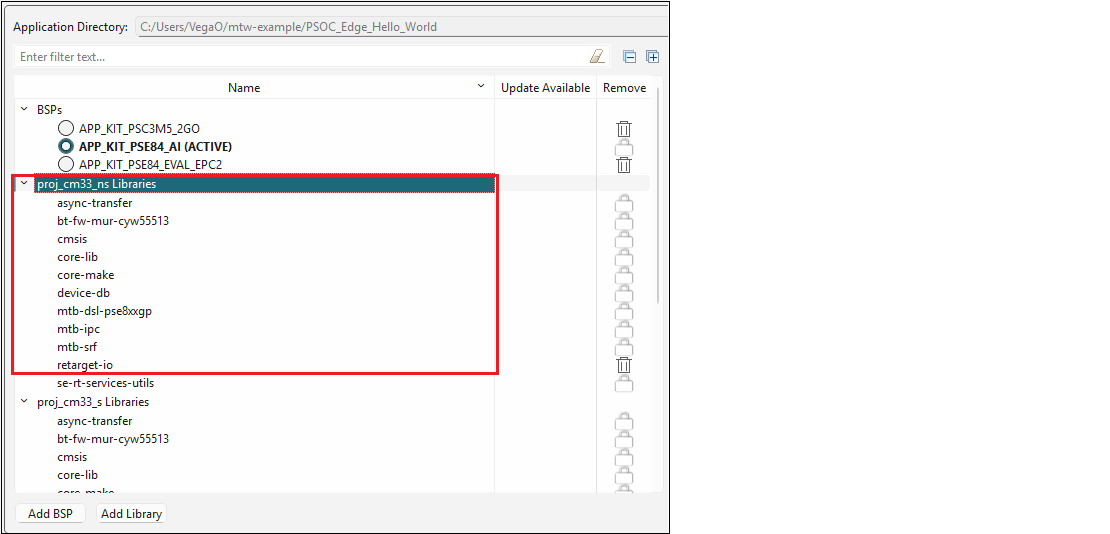
For a multi-core application, there are multiple sets of libraries; one for each core project.
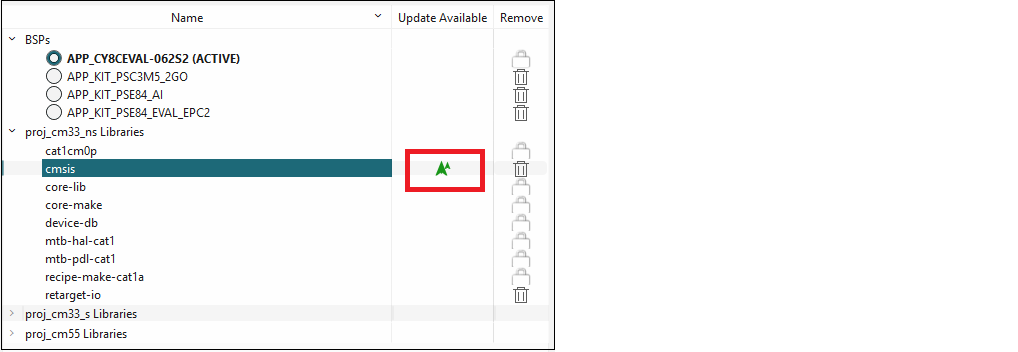
When a library has a newer version available than the one currently selected, a "newer version" symbol displays under Update Available, indicating that a newer major or minor version is available.
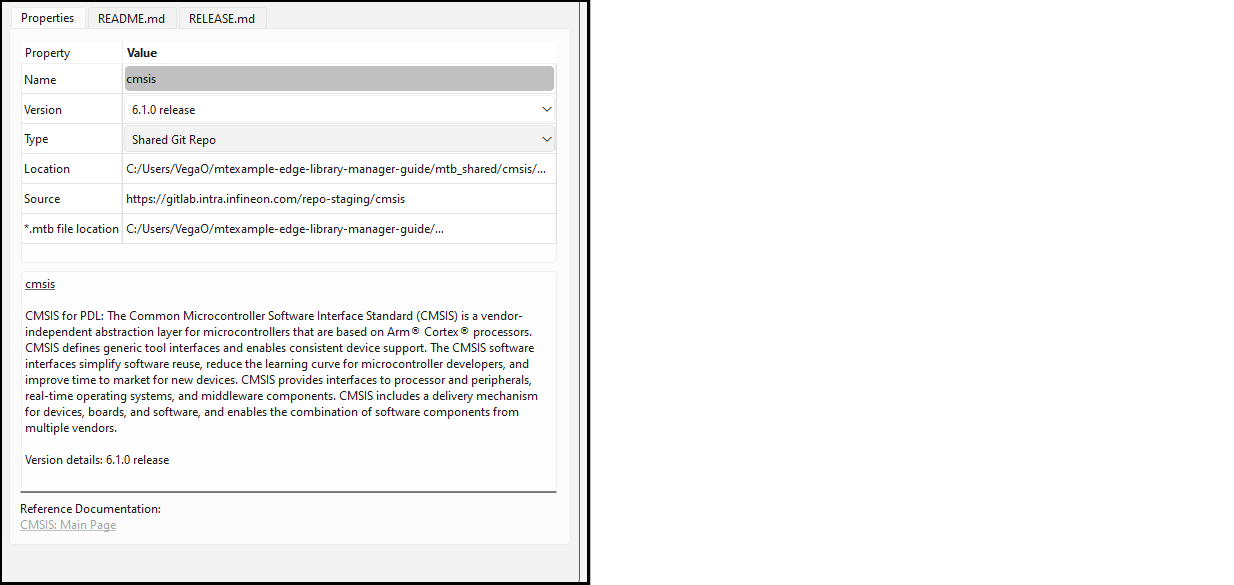
When you select a library, various information displays on the right side of the Library Manager See Tabs for more information.
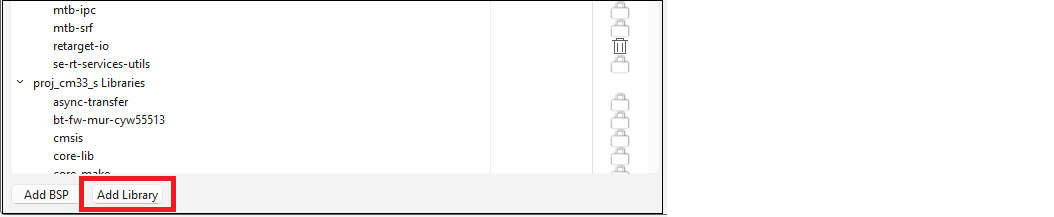
Add library (single-core application)
Click the Add Library button.
On the Add Library dialog, click one or more check boxes for libraries to add, and if needed, specify the Version. Then click OK.
The Target Project option for a single-core application has only one choice and it is selected by default.
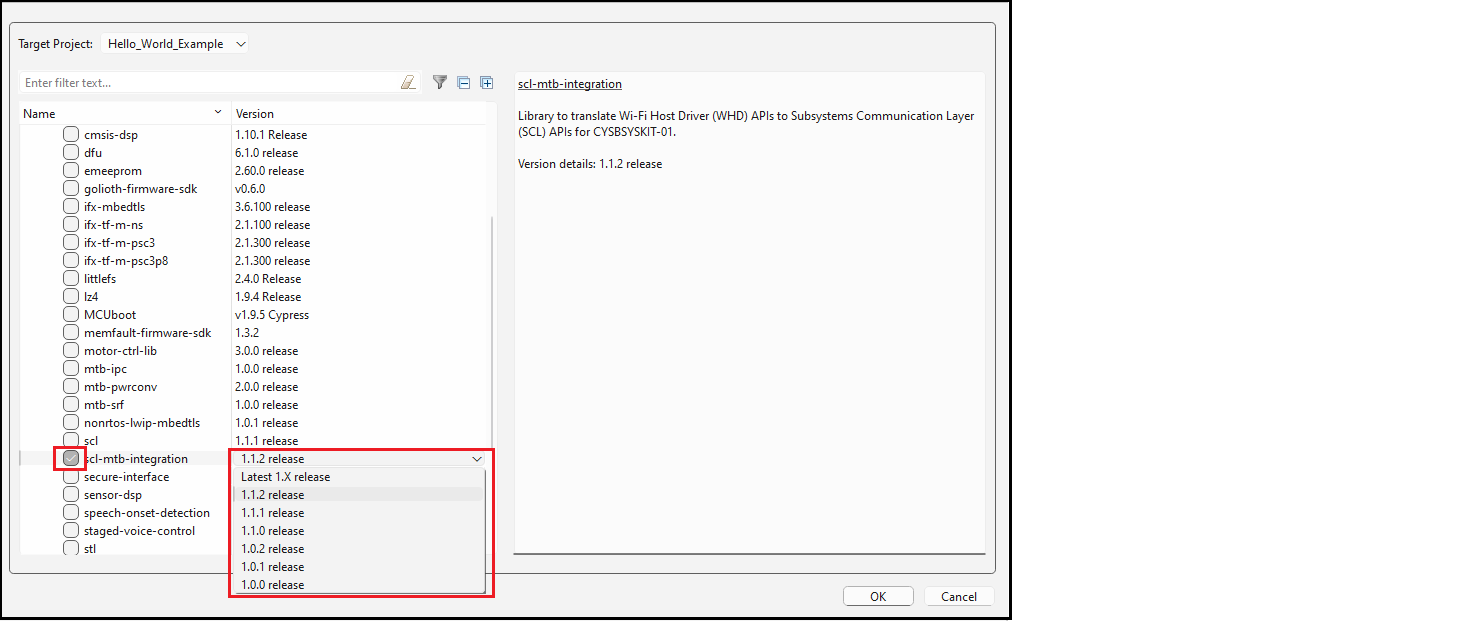
Back on the Library Manager, click the Update button to commit the changes.
Add library (multi-core application)
Click the Add Library button.
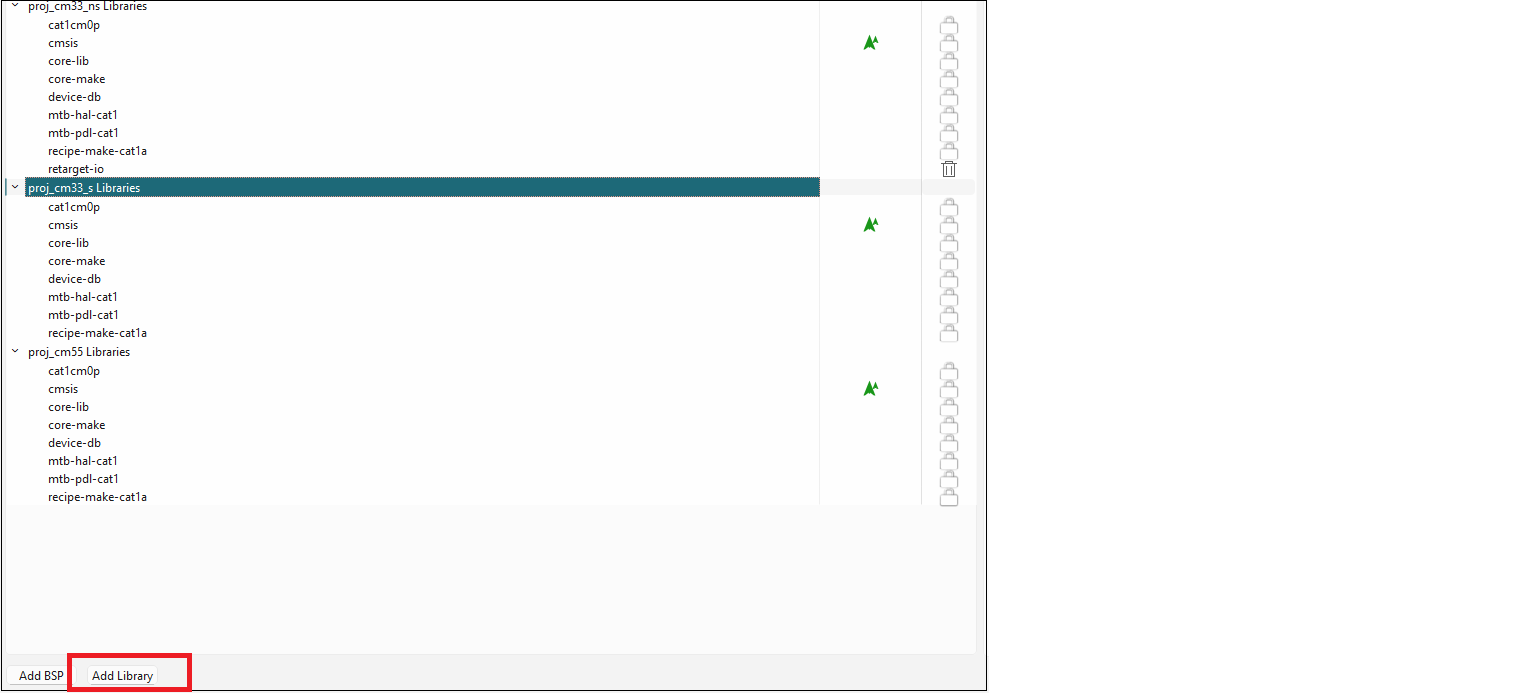
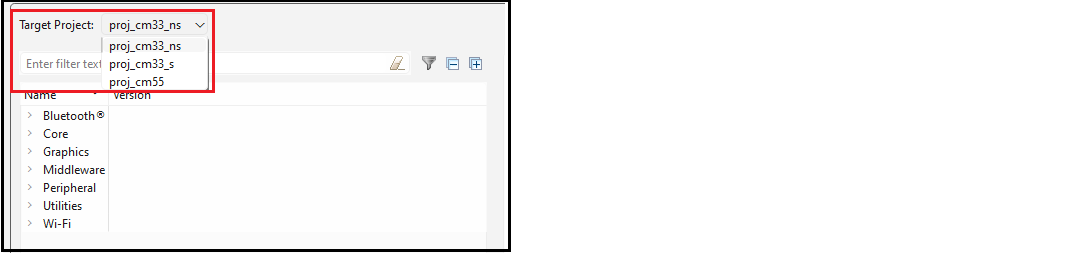
Select the appropriate core project from the Target Project pull-down menu.
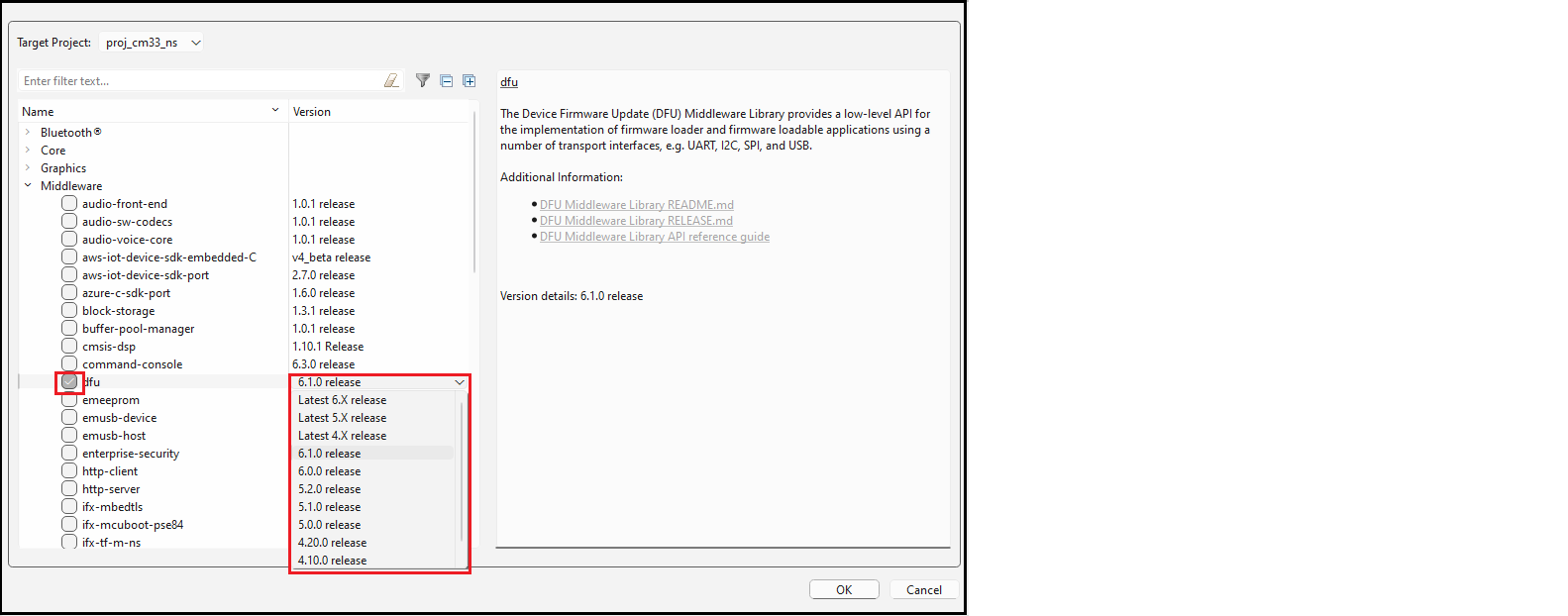
Click one or more check boxes for libraries to add, and if needed, specify the Version. Then click OK.
Update indirect dependency libraries
Some libraries included in your application show a lock symbol by default. This symbol indicates that a library is an Indirect dependency, and it is required by the BSP and/or another library.
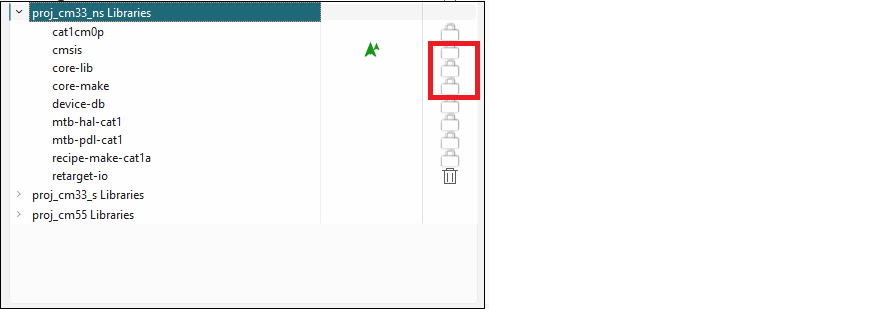
These libraries cannot be removed using the Library Manager; however, you can change whether or not it is shared and select a different version.
When you make a change to an Indirect Dependency library, the lock symbol changes to a Delete symbol. Unlike BSPs, this symbol indicates that after you click Update, the library is now a Direct dependency, and it is your responsibility to manage it either as a local library and/or with the selected version.
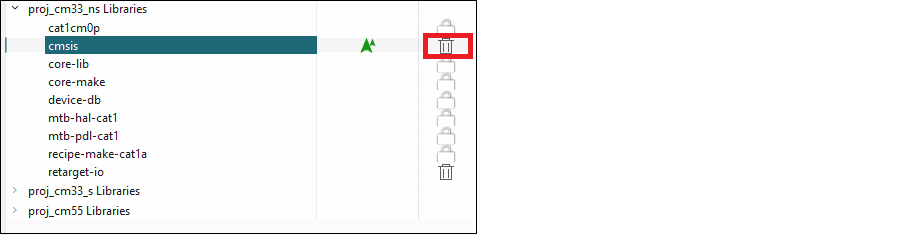
To change the library back to an Indirect Dependency, click the Delete symbol. The icon reverts back to the lock symbol, and the settings revert back to the defaults. You must click the Update button to commit the changes.
Change library version
Libraries have a specific version, by default. You can change a library version by selecting the pull-down menu next to Version and choosing another version. See Version for a detailed description.
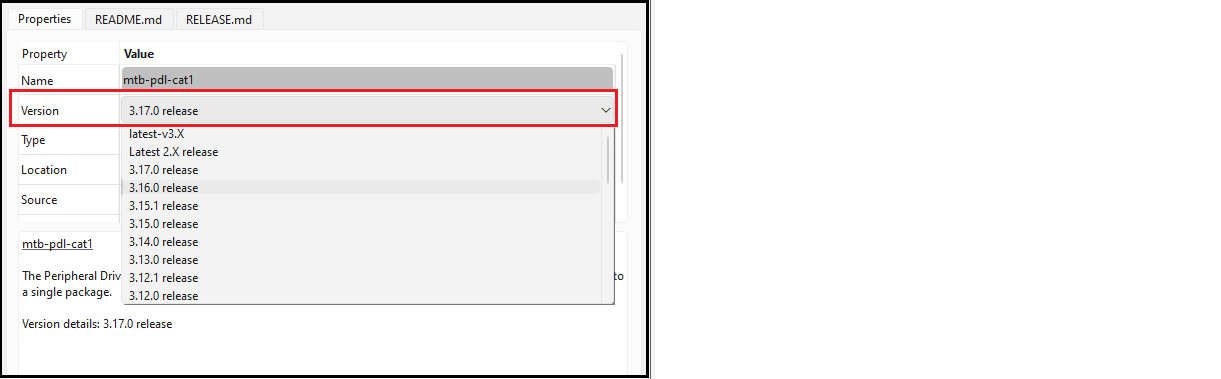
Click the Update button to commit the changes.
When you change versions for a shared library, the tool creates a new subdirectory for the added version to ensure that the existing version is available for other applications. However, when you change a version for a local library, the system will not create a new local subdirectory. Instead, the version of the library will just be updated with the appropriate tag.
Share/unshare libraries
When you create applications, libraries can be shared or local depending on the application and manifest. Shared libraries are included in a mtb_shared directory, which is adjacent to your application directory. Libraries that are local (that is, not shared) are included in the libs subdirectory inside your application’s directory.
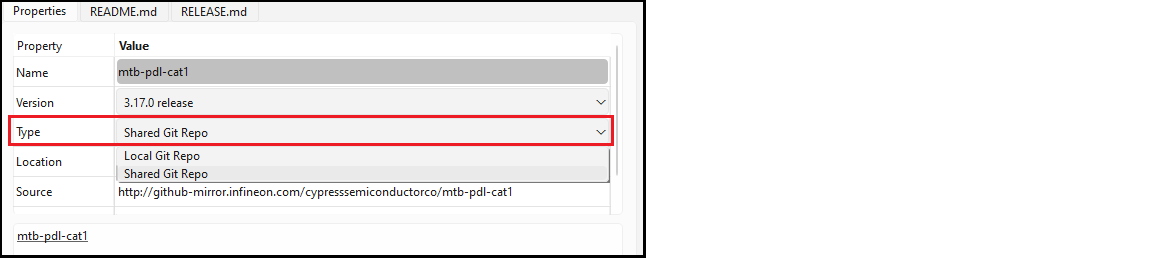
If you select Type "Local Git Repo" under the Properties tab, a new library will be created in the li**bs subdirectory, and it will not be removed from the mtb_shared library. This is because the system assumes a shared library is being used by another application. However, if you select "Shared Git repo" for a library already included as local in the application and click Update, that library will be removed from the libs subdirectory and will instead be populated in the mtb_shared directory.
Click the Update button to commit the change(s). The message console displays the progress and indicates when changes are complete.