Working with BSPs
This section covers the common tasks involved when working with BSPs for your application, including:
The Library Manager displays the BSP(s) included with the application at the top of the list above the libraries, by default.
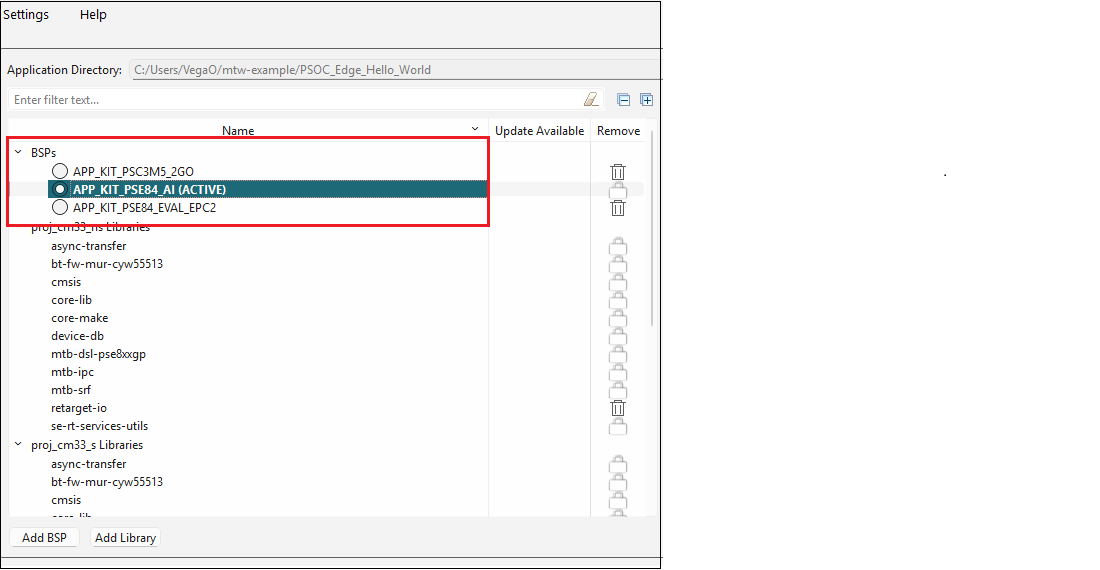
Select Active BSP
The active BSP for the application displays in bold text with "(ACTIVE)" next to it. An application can only have one active BSP. If your application has more than one BSP included, select one of the other BSPs to be active by clicking the radio option next to it. You can also choose to right-click on it and select Set as** Active BSP**. Then, click the Update button.

When you click the Update button, the system displays progress in the message console and updates your application's MakefileTARGET= variable to specify the new BSP as active.
Add BSPs
When you add a BSP to an application, you have several options, including adding a BSP from a template, browsing to one on disk, and creating a new BSP from a device part number. To begin the process, click the Add BSP button located below the list of BSPs and libraries.
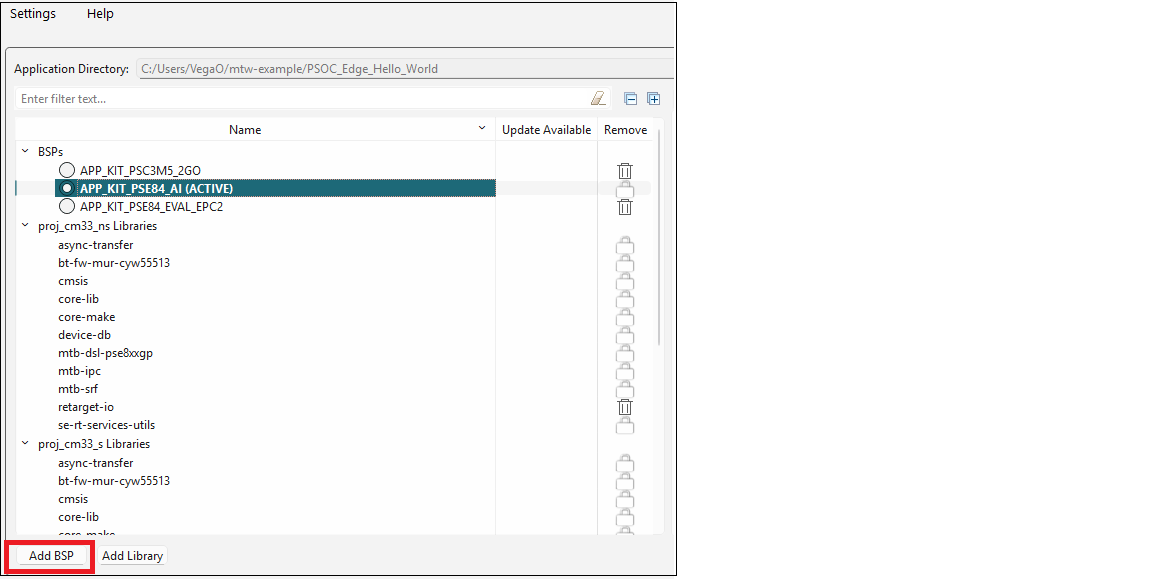
This opens the Add BSP dialog. There are different steps to add, select, or create a BSP.
Add BSP from template
On the Add BSP dialog, select the desired BSP from the list, change the New BSP name, if desired, and click OK.
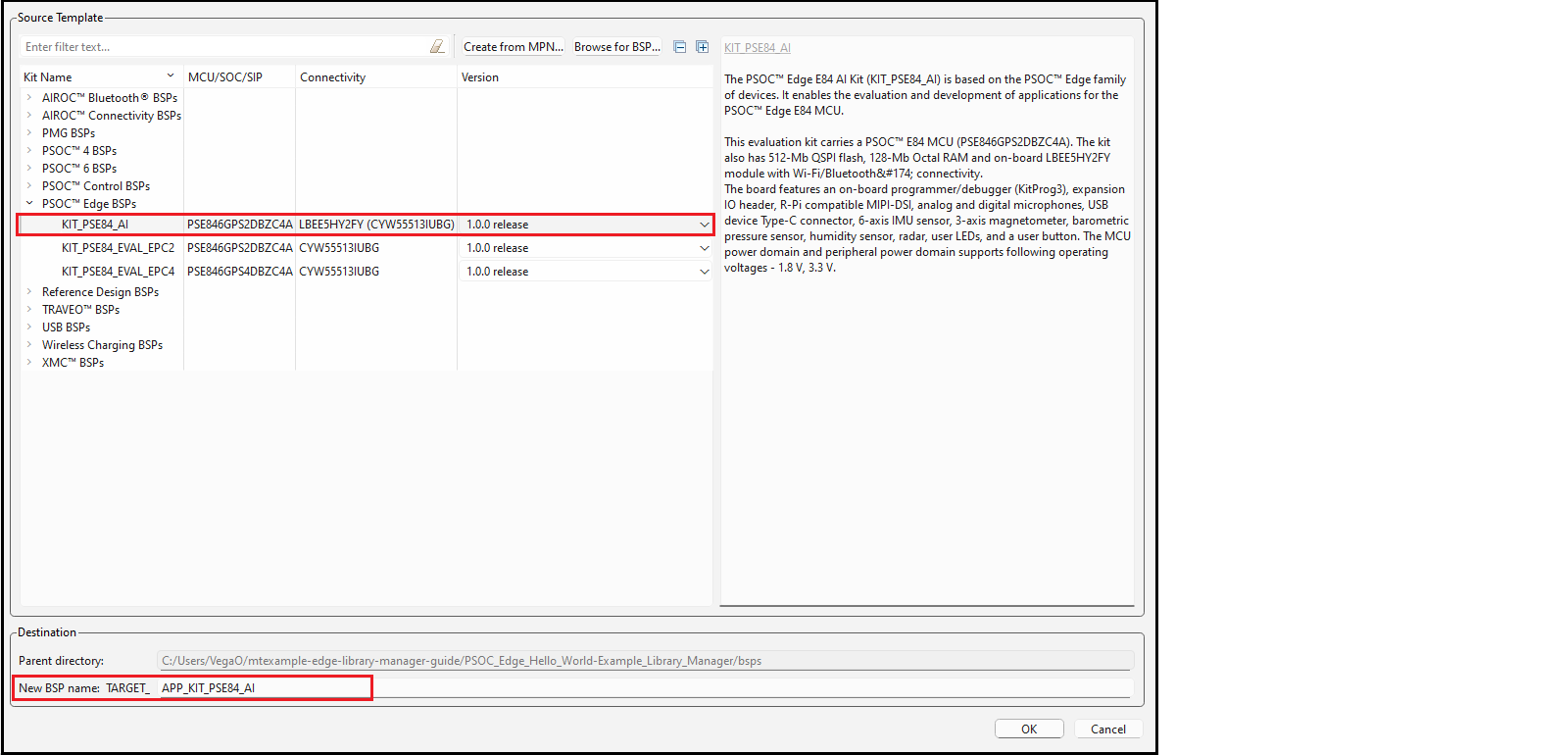
The added BSP will appear on the list of BSPs on the main Library Manager window.
Create BSP from MPN
On the Add BSP dialog, click the Create from MPN button. This command opens the BSP Assistant tool to create a BSP based on device part numbers. Refer to the BSP Assistant user guide for more details about how to create a BSP from MPN. When you close the BSP Assistant, the new BSP will show up in the Add BSP dialog under Import.
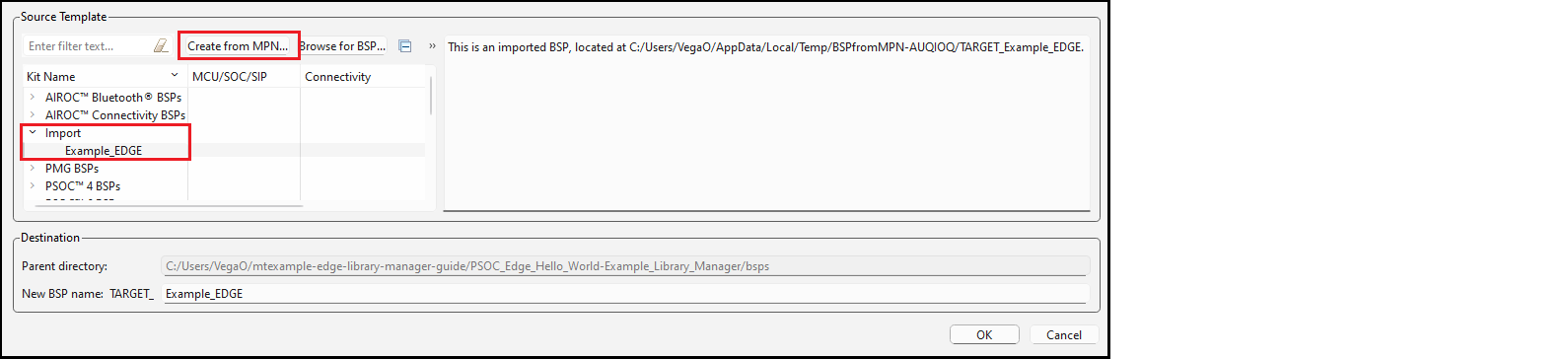
Change the New BSP name, if desired, and click OK. The new BSP will appear on the list of BSPs on the main Library Manager window.
Browse for existing BSP
On the Add BSP dialog, click the Browse for BSP button. Then on the Select Folder dialog, navigate to and select the desired BSP and click Select Folder.
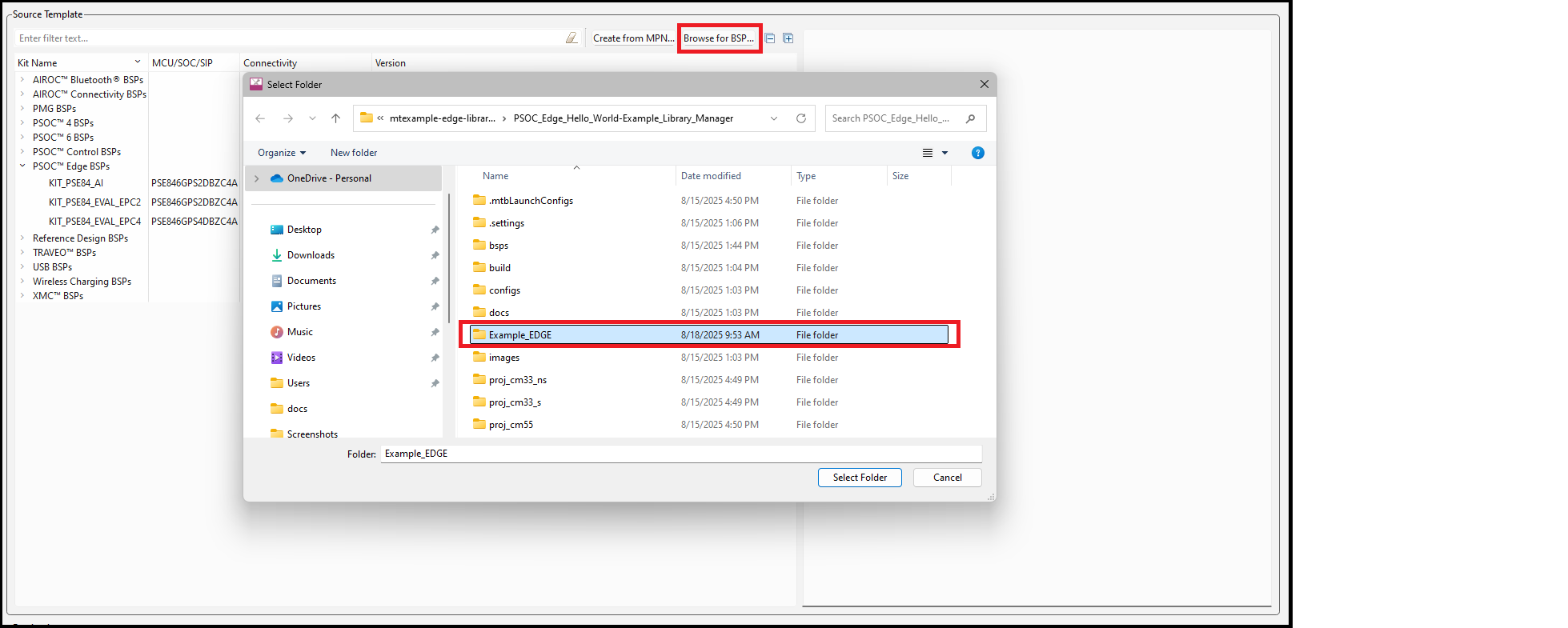
The added BSP will show up in the Add BSP dialog under Import.
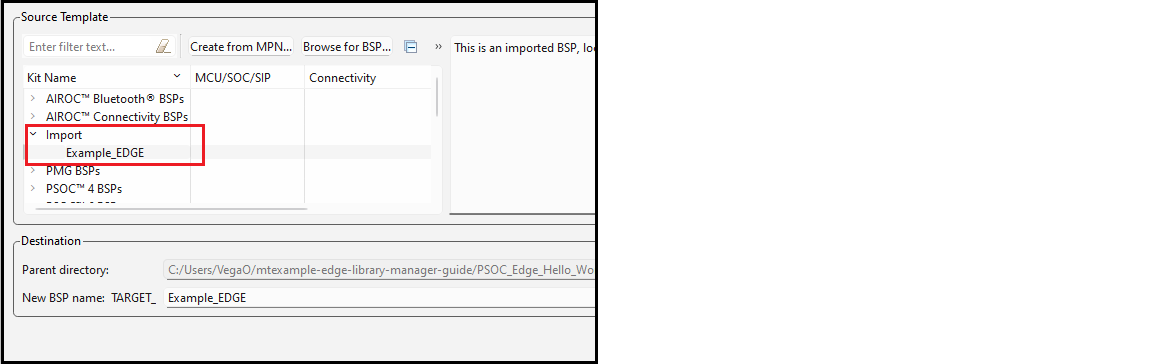
Change the New BSP name, if desired, and click OK. The added BSP will appear on the list of BSPs on the main Library Manager window.
Finalize Add BSP process
After adding a BSP you can choose to Select Active BSP. You can also choose to Remove BSP the non-active BSP and/or Rename BSP either BSP.
Regardless of whether you added an existing or new BSP, and whether you made other changes, the final step is to click the Update button on the main Library Manager window to commit the changes. This copies the BSP to the application and then it becomes owned by the application. This also updates the application's Makefile.
Rename BSP
There are a few ways to rename a BSP, as follows:
Existing BSP
For a BSP already shown in the main Library Manager list, right-click and select Rename BSP or double-click on the BSP. Then in the Properties tab Value field for the Name, type the new name for the BSP.
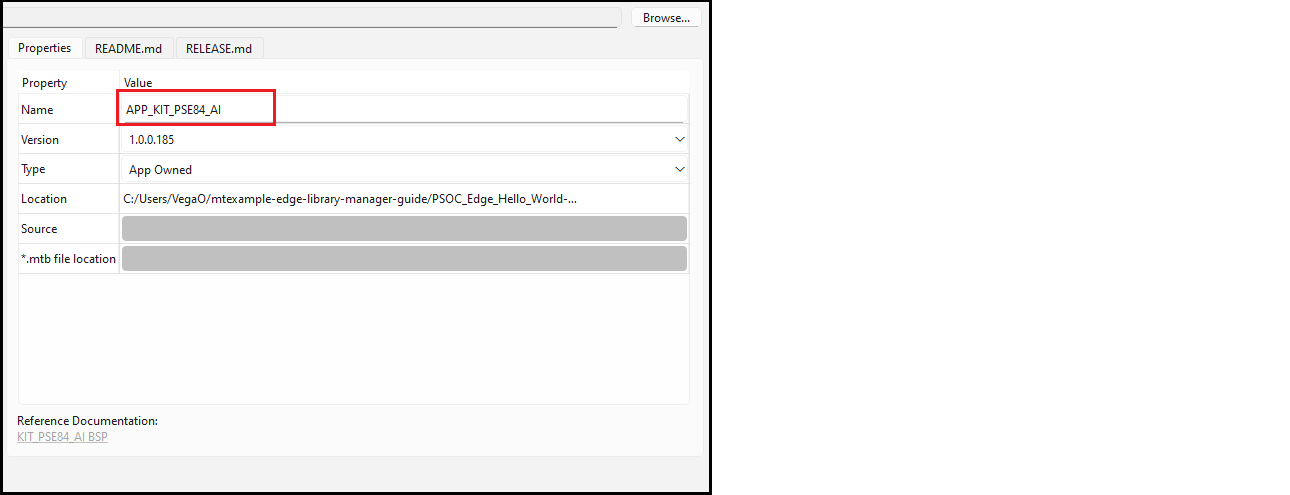
You can also double-click the BSP name shown in the Value field to rename it.
To commit the change, click Update.
Added BSP
You can also rename a BSP when adding one. On the Add BSP dialog, the added BSP appears under Import. When you select the added BSP, you can type a new name for it in the New BSP name field.
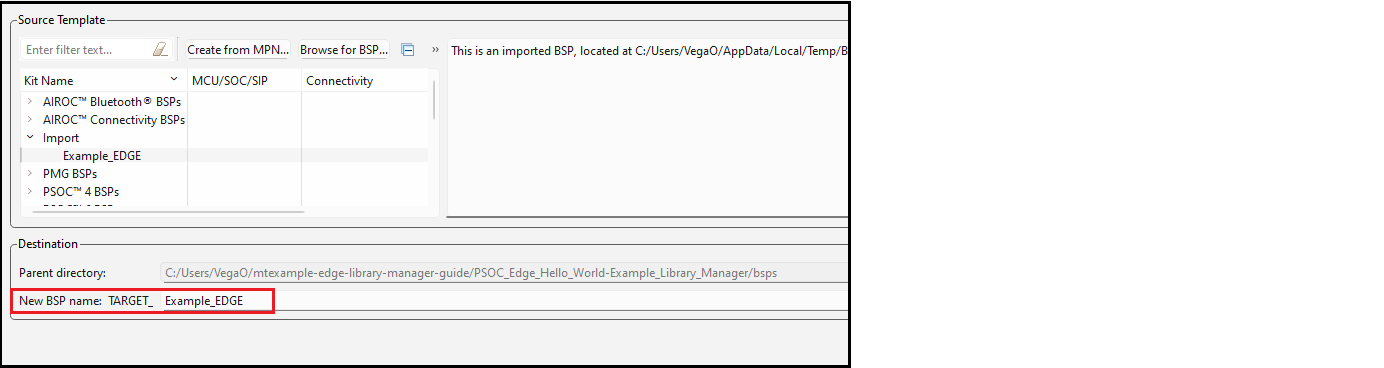
Remove BSP
To remove a BSP, click the Delete symbol under Remove for the appropriate BSP.
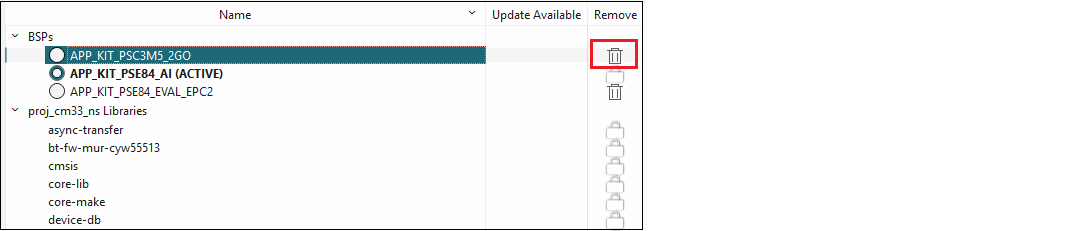
The Lock symbol for the active BSP means you cannot remove the active BSP from the application.
A dialog displays a message asking you to confirm the removal.

Click Delete to remove the BSP from the list of BSPs for the application. Then, click the Update button in the main window to commit the change.