Launch the Library Manager
There are numerous ways to launch the Library Manager, and that depends on how you use the various tools included with ModusToolbox™ software.
make command
As described in the ModusToolbox™ tools package user guide build system chapter, you can run numerous make commands in the application directory, such as launching the Library Manager. After you have created a ModusToolbox™ application, navigate to the application directory and type the following command in the appropriate bash terminal window:
make library-manager
This command opens the Library Manager GUI for the specific application in which you are working.
VS Code and Eclipse
VS Code and Eclipse have tools to launch the Library Manager from within an open application. Refer to the applicable user guide for more details:
Stand-alone GUI mode
You can launch the Library Manager in stand-alone mode by running its executable as applicable for your operating system (for example, double-click or select it using the Windows Start menu). By default, it is installed here:
[install_dir]/ModusToolbox/tools_[version]/library-manager
When run in stand-alone mode, the Library Manager opens with the target directory set as [user-home] or as the directory selected from a previous stand-alone session.
When launching from the executable, you can add the --verbose [0-3] option to specify more or less messaging in the console. The default level is 1.
If you haven’t opened the Library Manager tool previously, it starts at your home directory and looks for an application Makefile, and then it opens the first application it finds. If the tool does not find an application, it doesn't display any BSPs or libraries.
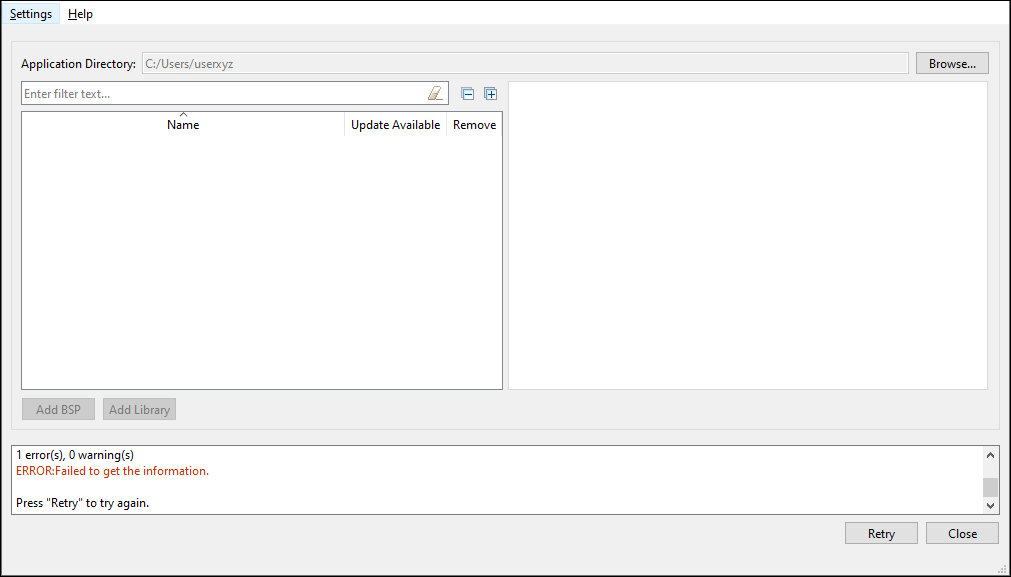
Click the Browse… button next to the Application Directory field and navigate to the appropriate directory that contains the desired application.
The next time you open the Library Manager in stand-alone mode, it will open with the most recently selected application.
Local Content mode
If the Library Manager cannot connect to the internet when launching, it displays messages/errors in the console that it cannot access the online manifest file. If you intend to work without Internet, enable Local Content mode from the Settings menu. Refer to the Local Content Storage CLI user guide for details about creating local content.
If you did not intend to work without Internet, check your Internet settings, adjust your proxy settings (from the Settings menu), and then click the Retry button to re-read library information.
Non-GUI command line interface (CLI)
You can run a non-graphical interface from the command line. However, there are only a few reasons to do this in practice. The primary use case would be part of an overall build script for the entire application. For information about command line options, run the library-manager-cli executable using the -h option.