Launch the Smart I/O Configurator
There are numerous ways to launch the Smart I/O Configurator, and those ways depend on how you use the various tools in ModusToolbox™ software.
make command
As described in the tools package user guide build system chapter, you can run numerous make commands in the application directory, such as launching the Smart I/O Configurator. After you have created a ModusToolbox™ application, navigate to the application directory and type the following command in the appropriate bash terminal window:
make smartio-configurator
This command opens the Smart I/O Configurator GUI for the specific application in which you are working.
VS Code and Eclipse
VS Code and Eclipse have tools to launch the Smart I/O Configurator from within an open application. Refer to the applicable user guide for more details:
From the Device Configurator
To launch the Smart I/O Configurator GUI from the Device Configurator:
-
Open the Device Configurator. See the Device Configurator user guide for details.
-
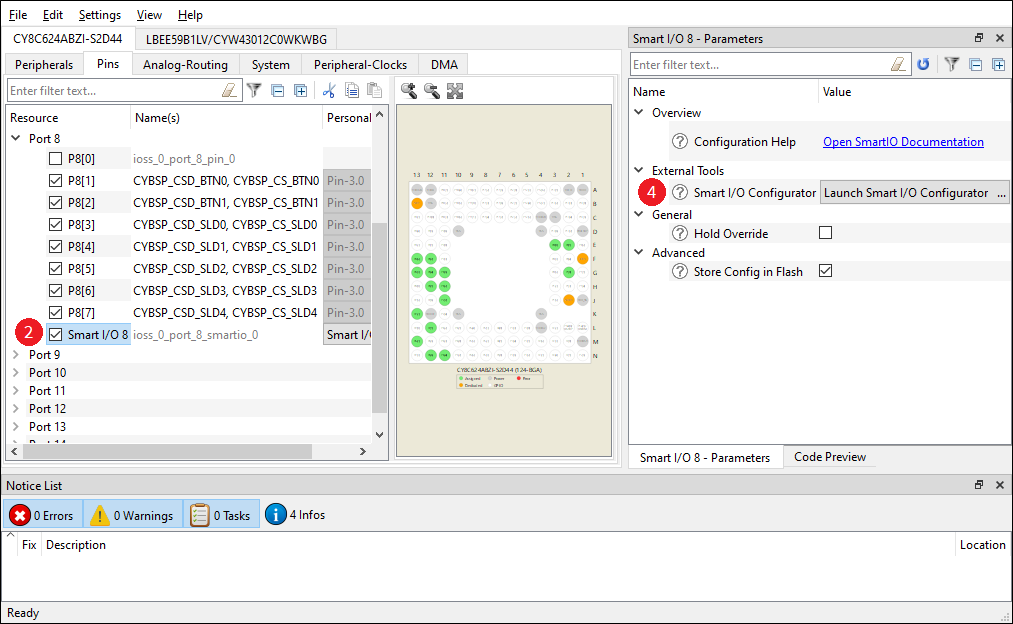
On the Pins tab, expand Port 8 and/or Port 9, and enable the Smart I/O resource.
-
Click File > Save to save the configuration.
-
On the Parameters tab, click the Launch Smart I/O Configurator button.
Executable (GUI)
If you don't have an application or if you just want to see what the configurator looks like, you can launch the Smart I/O Configurator GUI by running its executable as appropriate for your operating system (for example, double-click it or select it using the Windows Start menu). By default, it is installed here:
[install_dir]/ModusToolbox/tools_[version]/smartio-configurator-[version]
When launched this way, the Smart I/O Configurator opens without any settings configured. You can either open a specific configuration file or create a new one. See Menus for more information.
The Smart I/O uses the *.modus file that is also used by the Device Configurator for the same application.