Using ModusToolbox™ tools
ModusToolbox Assistant extension
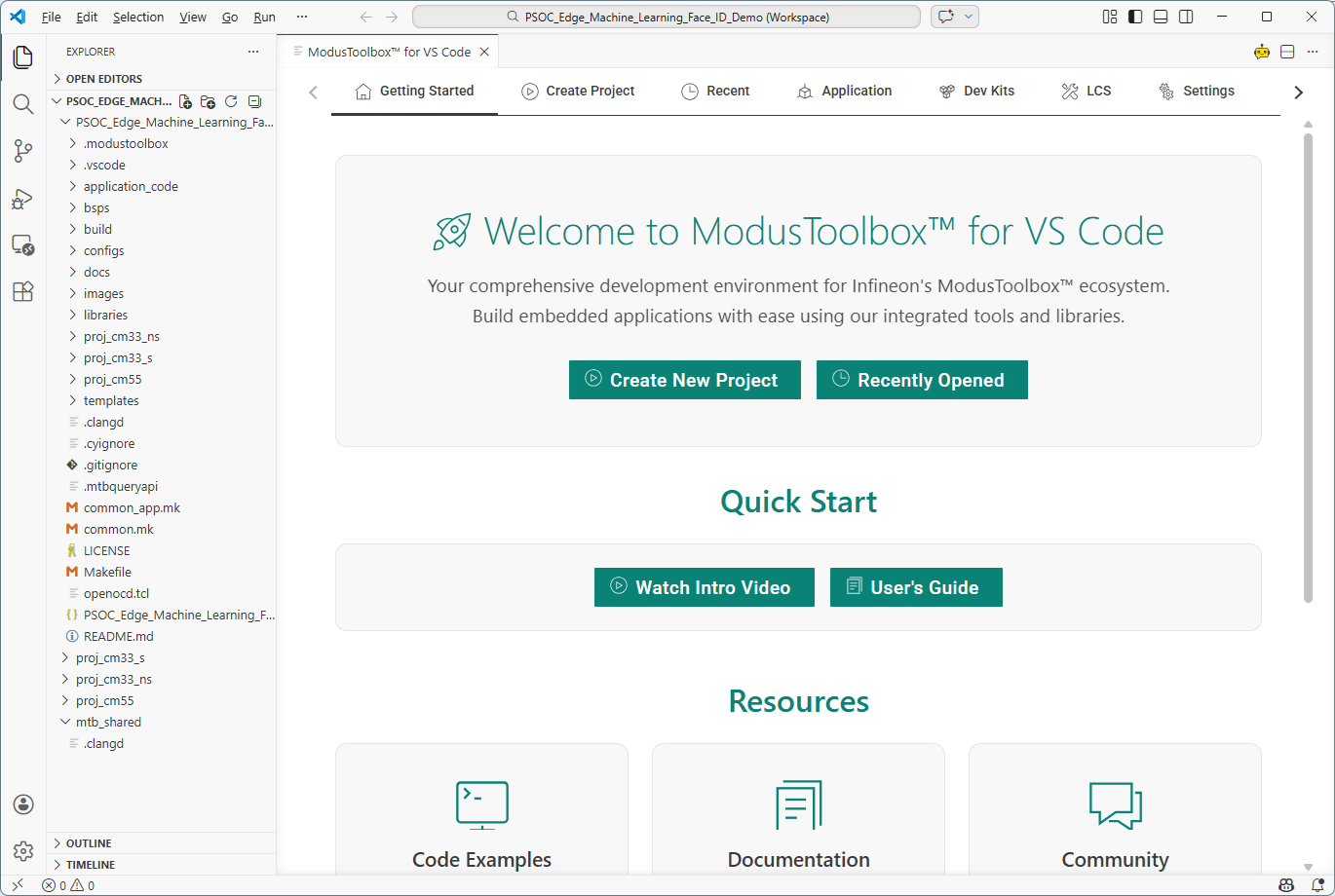
The easiest way to open various ModusToolbox™ tools with VS Code is by installing the ModusToolbox™ Assistant extension, which provides access to tools, configurators, and documentation.
Command line
Alternatively, you can open various ModusToolbox™ tools using make commands in the terminal. Select Terminal > New Terminal, then select the main project folder for your application (in this case, Hello_World):

On Windows, use the modus-shell (Cygwin) terminal.
This section covers a few of the tools you might open more frequently. For a complete list of the tools available, refer to the tools package user guide.
Library Manager
To add, remove, or modify libraries, open the Library Manager using the following command:
make library-manager
Refer to the Library Manager user guide for details about that tool.
BSP Assistant
To create or modify a BSP, open the BSP Assistant using the following command:
make bsp-assistant
Refer to the BSP Assistant user guide for details about that tool.
Device Configurator
To view peripherals, pins, clocks, etc., open the Device Configurator using the following command:
make device-configurator
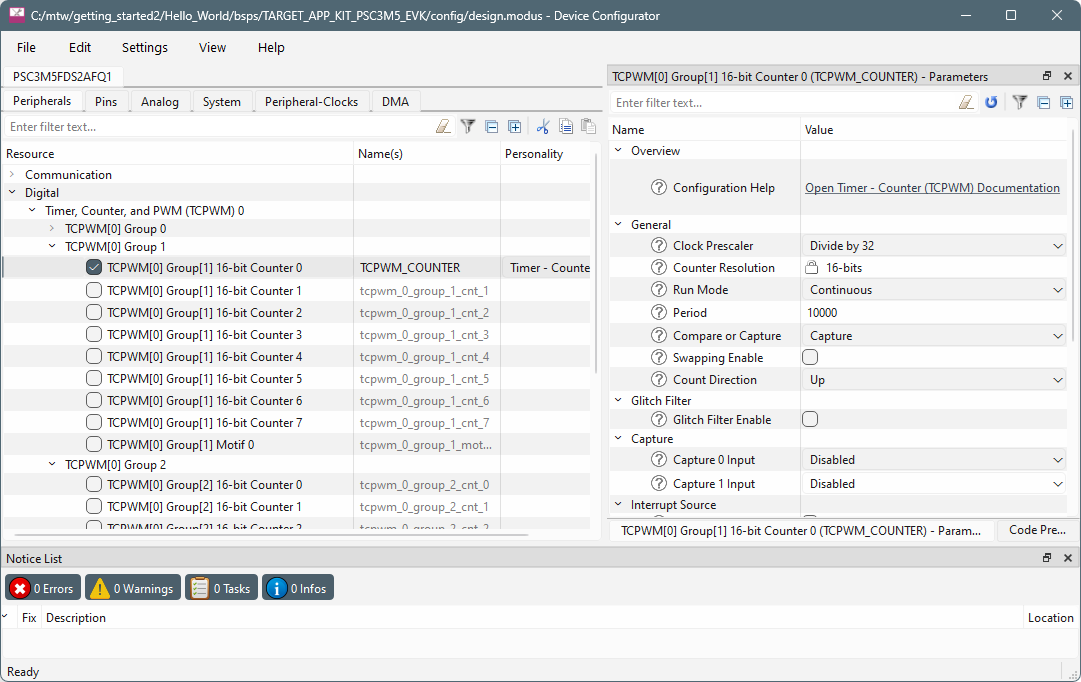
The Device Configurator provides access to the BSP resources and settings. Each enabled resource contains one or more links to the related API documentation. There are also buttons to open other configurators for CAPSENSE™, QSPI, Smart I/O, etc. For more information, refer to the Device Configurator user guide, which is also available by selecting View Help from the tool’s Help menu.
The Device Configurator cannot be used to open Library Configurators, such as Bluetooth®.