Tools package
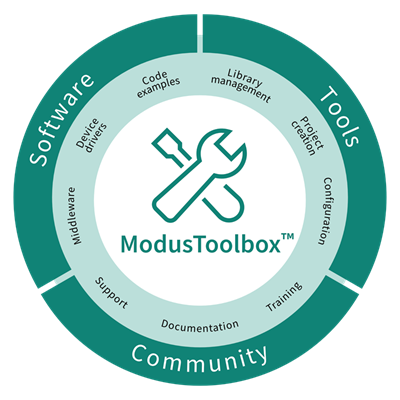
The ModusToolbox™ tools package provides you with all the desktop products needed to build sophisticated, low-power embedded, connected and IoT applications. The tools enable you to create new applications (Project Creator), add or update software components (Library Manager), set up peripherals and middleware (Configurators), program and debug (OpenOCD and Device Firmware Updater), and compile (GNU C compiler).
Infineon Technologies understands that you want to pick and choose the tools and products to use, merge them into your own flows, and develop applications in ways we cannot predict. That's why ModusToolbox™ software is not a monolithic, proprietary software tool that dictates the use of any particular IDE.
The
ModusToolbox™ tools package installer
provides required and optional core resources for any application. This section provides an overview of the available resources:
The installer does not include
Code examples
or
Libraries (middleware)
, but it does provide the tools to access them.
Directory structure
Refer to the
ModusToolbox™ tools package installation guide
for information about installing ModusToolbox™ software. Once it is installed, the various ModusToolbox™ top-level directories are organized as follows:
Note:
This image shows ModusToolbox™ version 3.6 installed. Your installation may include more than one ModusToolbox™ version. Refer to the
Product versioning
section for more details.
The "
ModusToolbox
" directory contains the following subdirectories for version 3.6:
docs_<version>
This is the top-level documentation directory. It contains various top-level documents and the
doc_landing.html
file with links to documents provided as part of ModusToolbox™ software. This file is also available from the Dashboard.

resources_<version>
This directory contains a .
json
file with details about the version of the tools package. There are also a couple helper files for the icon and launch-tool.
tools_<version>
This contains all the various tools and scripts installed as part of ModusToolbox™ tools package. See
Tool descriptions
for more information.

Packs
Packs can be installed separately from a tools package release. These packs include additional software and tools for specific features, such as machine learning. If you install a pack, it will create a "packs" subdirectory in the root "ModusToolbox" installation directory. Refer to the pack documentation for specific details about a pack.
To install a pack, use the Setup program or go to
. There will be links to either install the pack directly or download it to install manually. The pack documentation will provide additional instructions and requirements, as needed.
Tool descriptions
The
tools_<version>
directory includes the following configurators, tools, and utilities:
Configurators
Each configurator is a cross-platform tool that allows you to set configuration options for the corresponding hardware peripheral or library. When you save a configuration, the tool generates the C code and/or a configuration file used to initialize the hardware or library with the desired configuration.
Configurators are independent of each other, but they can be used together to provide flexible configuration options. They can be used stand alone, in conjunction with other configurators, or as part of a complete application. All of them are installed during the ModusToolbox™ installation. Each configurator provides a separate guide, available from the configurator's
Help
menu.
Configurators perform tasks such as:
Displaying a user interface for editing parameters
Setting up connections such as pins and clocks for a peripheral
Generating code to configure middleware
Note:
Some configurators may not be useful for your application.
Configurators store configuration data in an XML data file that provides the desired configuration. Each configurator has a "command line" mode that can regenerate source based on the XML data file. Configurators are divided into two types: BSP Configurators and Library Configurators.
The following diagram shows a high-level view of the configurators that could be used in a typical application.
BSP configurators
BSP configurators configure the hardware on a specific device. This can be a board provided by us, a partner, or a board that you create that is specific to your application. Some of these configurators interact with the design.modus file to store and communicate configuration settings between different configurators. Code generated by a BSP Configurator is stored in a directory named GeneratedSource, which is in the same directory as the design.modus file. This is generally located in the BSP for a given target board. Some of the BSP configurators include:

Device Configurator : Set up the system (platform) functions such as pins, interrupts, clocks, and DMA, as well as the basic peripherals, including UART, Timer, etc. Refer to the Device Configurator user guide for more details.
CAPSENSE™ Configurator : Configure CAPSENSE™ hardware, and generate the required firmware. This includes tasks such as mapping pins to sensors and how the sensors are scanned. Refer to the CAPSENSE™ Configurator user guide for more details.
There is also a
CAPSENSE™ Tuner
to adjust performance and sensitivity of CAPSENSE™ widgets on the board connected to your computer. Refer to the
CAPSENSE™ Tuner user guide
for more details.
QSPI Configurator : Configure external memory and generate the required firmware. This includes defining and configuring what external memories are being communicated with. Refer to the QSPI Configurator user guide for more details.
Smart I/O Configurator : Configure the Smart I/O. This includes Chip, I/O, Data Unit, and LUT signals between port pins and the HSIOM. Refer to the Smart I/O Configurator user guide for more details.
SegLCD Configurator : Configure LCD displays. This configuration defines a matrix Seg LCD connection and allows you to setup the connections and easily write to the display. Refer to the SegLCD Configurator user guide for more details.
Library configurators
Library configurators support configuring application middleware. Library configurators do not read nor depend on the design.modus file. They generally create data structures to be consumed by software libraries. These data structures are specific to the software library and independent of the hardware. Configuration data is stored in a configurator-specific XML file (for example, *.cybt, *.cyusbdev, etc.). Any source code generated by the configurator is stored in a GeneratedSource directory in the same directory as the XML file. The Library configurators include:
Bluetooth® Configurator : Configure Bluetooth® settings. These include options for specifying what services and profiles to use and what features to offer by creating SDP and/or GATT databases in generated code. This configurator supports both PSOC™ MCU and AIROC™ Bluetooth® applications. Refer to the Bluetooth® Configurator user guide for more details.
USB Configurator : Configure USB settings and generate the required firmware. This includes options for defining the Device Descriptor and Settings. Refer to the USB Configurator user guide for more details.
LIN Configurator : Configure various LIN settings, such as frames and signals, and generate the required firmware. Refer to the LIN Configurator user guide for more details.
EZ-PD™ Configurator : Configure the features and parameters of the PDStack middleware for PMG1 family of devices. Refer to the EZ-PD™ Configurator user guide for more details.
Other tools
ModusToolbox™ software includes other tools that provide support for application creation, device firmware updates, and so on. All tools are installed by the
ModusToolbox™ tools package installer
. With rare exception each tool has a user guide located in the
docs
directory beside the tool itself. Most user guides are also available online.
Other tools | Details | Documentation |
|---|---|---|
dashboard | Top-level starting point to create applications and BSPs. | |
project-creator | Create a new application. | |
library-manager | Add and remove libraries and BSPs used in an application; edits the Makefile . | |
bsp-assistant | Create and update BSPs. | |
mtb-settings | ModusToolbox™ Settings tool provides one place to configure various settings for all tools, such as proxy settings, content mode, manifest DB location, etc. | user guide is in the tool's docs directory |
cymcuelftool | Older tool used to merge CM0+ and CM4 application images into a single executable. Typically launched from a post-build script. This tool is not used by most applications. | user guide is in the tool's docs directory |
dfuh-tool | Communicate with a device that has already been programmed with an application that includes device firmware update capability. Provided as a GUI and a command-line tool. Depending on the ecosystem you target, there may be other over-the-air firmware update tools available. | |
lcs-manager-cli | Command-line tool to create local content to work without Internet. | |
mtbarchive | GUI and command-line tool to create a zip file archive of a project to share with colleagues. | The tool creates a readme file. |
Utilities
ModusToolbox™ software includes some additional utilities that are often necessary for application development. In general, you do not use these utilities actively; they are triggered by various user actions.
Utility | Description |
|---|---|
airoc-tools | Assorted utilities used for AIROC™ projects. |
hardware-config-server | Background utility that brokers transactions between (potentially) multiple user-facing applications and a common design file. |
make | Build system tools. |
mtbgetlibs | Background utility that facilitates acquiring libraries. |
mtbideexport | Background utility used to provide various IDE support. |
mtblaunch | Background utility used to launch various tools. |
mtbninja/ninja | Background utility to speed up builds. |
mtbquery | Background utility used to query databases. |
mtbsearch | Background utility used to search projects. |
signcombinemkgen | Signer/combiner make generation tool. |
SRecord | Collection of tools for manipulating EPROM load files. This is used to merge multi-core application images into a combined programmable HEX image. |
Build system infrastructure
The build system infrastructure is the fundamental resource in ModusToolbox™ software. It serves three primary purposes:
create an application, update and clone dependencies
create an executable
provide debug capabilities
A
Makefile
defines everything required for your application, including:
target hardware (board/BSP to use)
source code and libraries to use for the application
ModusToolbox™ tools version, as well as compiler toolchain to use
compiler/assembler/linker flags to control the build
assorted variables to define things like file and directory locations
The build system automatically discovers all .c, .h, .cpp, .s, .a, .o files in the application directory and subdirectories, and uses them in the application. The
Makefile
can also discover files outside the application directory. You can add another directory using the
CY_SHAREDLIB_PATH
variable. You can also explicitly list files in the
SOURCES
and
INCLUDES
make variables.
Each library used in the application is identified by a .
mtb
file. This file contains the URL to a git repository, a commit tag, and a variable for where to put the library on disk. For example, a
capsense.mtb
file might contain the following line:
https://github.com/Infineon/capsense#latest-v2.X#$$ASSET_REPO$$/capsense/latest-v2.X
The build system implements the
make getlibs
command. This command finds each .
mtb
file, clones the specified repository, checks out the specified commit, and collects all the files into the specified directory. Typically, the
make getlibs
command is invoked transparently when you create an application or use the Library Manager, although you can invoke the command directly from a command-line interface. See
ModusToolbox™ build system
for detailed documentation on the build system infrastructure.
Program and debug support
For programming and debugging, the
ModusToolbox™ Programming tools package
is available separately, and you should install that package along with the base tools package using the Setup program. You can use various IDEs to program devices and establish a debug session (see
Using supported IDEs
).
The following tools are part of the Programming tools package and they are no longer installed in the base package "
ModusToolbox
" tools directory:
Tool | Description | Documentation |
|---|---|---|
ModusToolbox™ Programmer | ModusToolbox™ Programmer functionality is built into ModusToolbox™ Software. ModusToolbox™ is also available as a stand-alone tool. | |
fw-loader | A simple command line tool to identify which version of KitProg is on a kit, and easily switch back and forth between legacy KitProg2 and current KitProg3. | readme.txt file in the tool directory |
KitProg3 | This tool is managed by fw-loader, it is not available separately. KitProg3 is a low-level communication/debug firmware. Use fw-loader to upgrade your kit to KitProg3, if needed. | |
OpenOCD | Our specific implementation of OpenOCD is installed with ModusToolbox™ software. |
ModusToolbox™ software supports the
Open On-Chip Debugger
(OpenOCD) using a GDB server, and supports the J-Link debug probe. See
Switch to J-Link
for details.
ModusToolbox™ Programmer uses KitProg3 low-level communication firmware. The firmware loader (fw-loader) is a software tool you can use to update KitProg3 firmware, if you need to do so. The fw-loader tool is installed with the ModusToolbox™ Programming tools package. The latest version of the tool is also available separately in a
GitHub repository
.