Product versioning
ModusToolbox™ products include tools and firmware that can be used individually, or as a group, to develop connected applications for our devices. We understand that you want to pick and choose the ModusToolbox™ products you use, merge them into your own flows, and develop applications in ways we cannot predict. However, it is important to understand that every tool and library may have more than one version. The tools package that provides the set of tools also has its own version. This section describes how ModusToolbox™ products are versioned.
General philosophy
ModusToolbox™ software is not a monolithic entity. Libraries and tools in the context of ModusToolbox™ are effectively "mini-products" with their own release schedules, upstream dependencies, and downstream dependent assets and applications. We deliver libraries via GitHub, and we deliver tools though the ModusToolbox™ tools package and the ModusToolbox™ Setup program.
All ModusToolbox™ products developed by us follow the standard versioning scheme:
If there are known backward compatibility breaks, the major version is incremented.
Minor version changes may introduce new features and functionality, but are "drop-in" compatible.
Patch version changes address minor defects. They are very low-risk (fix the essential defect without unnecessary complexity).
Code Examples include various libraries automatically. Prior to the ModusToolbox™ 2.3 release, these libraries were typically the latest versions. From the 2.3 release and newer, when you create a new application from a code example, any of the included libraries specified with a "latest-style" tag are converted to the "release-vX.Y.Z" style tag.
If you use the Library Manager to add a library to your project, the tool automatically finds and adds any required dependent libraries. From the 2.3 release and newer using the MTB flow, these dependencies are created using "release-vX.Y.Z" style tags. The tool also creates and updates a file named
assetlocks.json
in the
deps
subdirectory inside your application directory. This file maintains a history of all latest to release conversions made to ensure consistency with any libraries added in the future.
Tools package versioning
The ModusToolbox™ tools installation package is versioned as MAJOR.MINOR.PATCH. The file located at
<install_path>/ModusToolbox/tools_<version>/version-x.y.z.xml
also indicates the build number.
Every MAJOR.MINOR version of a ModusToolbox™ product is installed by default into
<install_path>/ModusToolbox
. So, if you have multiple versions of ModusToolbox™ software installed, they are all installed in parallel in the same "
ModusToolbox
" directory.
Multiple tools versions installed
When you run make commands from the command line, a message displays if you have multiple versions of the "tools" directory installed and if you have not specified a version to use.
INFO: Multiple tools versions were found in
"/cygdrive/c/Users/XYZ/ModusToolbox/tools_a.b
/cygdrive/c/Users/XYZ/ModusToolbox/tools_x.y
C:/Users/XYZ/ModusToolbox/tools_x.y C:/Users/XYZ/ModusToolbox/tools_x.y".
This build is currently using "C:/Users/XYZ/ModusToolbox/tools_x.y".
Check that this is the correct version that should be used in this build.
To stop seeing this message, set the CY_TOOLS_PATHS environment variable
to the location of the tools directory. This can be done either as an
environment variable or set in the application Makefile.
Specifying alternate tools version
By default, the ModusToolbox™ software uses the most current version of the
tools_<version>
directory installed. That is, if you have ModusToolbox™ versions 3.6 and 3.5 installed, and if you launch the Eclipse IDE, the IDE will use the tools from the
tools_3.6
directory to launch configurators and build an application. This section describes how to specify the path to the desired version.
Environment variable
The overall way to specify a path other than the default "tools" directory, is to use a system variable named
CY_TOOLS_PATHS
. On Windows, open the Environment Variables dialog, and create a new System/User Variable, for example:
CY_TOOLS_PATHS=[ModusToolbox-install-path]/tools_[version]
Note:
Use a Windows style path, (that is, not like /cygdrive/c/). Also, use forward slashes. For example: C:/Users/XYZ/ModusToolbox/tools_3.x/
Use the appropriate method for setting variables in macOS and Linux for your system.
Specific project Makefile
If you want to use a specific "tools" path for your current project, edit that project's
Makefile
, as follows:
# If you install the IDE in a custom location, add the path to its
# "tools_X.Y" folder (where X and Y are the version number of the tools
# folder).
CY_TOOLS_PATHS+=C:/Users/XYZ/ModusToolbox/tools_3.x
This setting in the
Makefile
takes precedence over the environment variable .
Tools and configurators versioning
Every tool and configurator follow the standard versioning scheme and include a version.xml file that also contains a build number.
Configurator messages
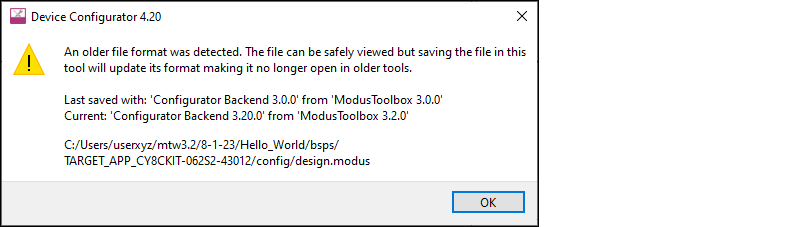
Configurators indicate if you are about to modify the configuration file (for example, design.modus) with a newer version of the configurator, as well as if there is a risk that you will no longer be able to open it with the previous version of the configurator:
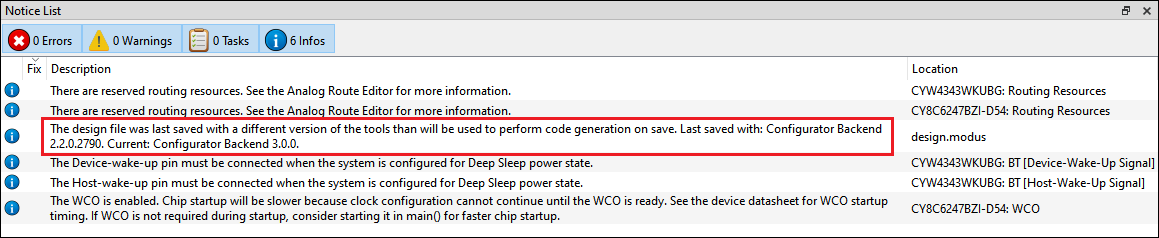
Configurators will also indicate if you are trying to open the existing configuration with a different, backward and forward compatible version of the Configurator.
Note:
If using the command line, the build system will notify you with the same message.
GitHub libraries versioning
GitHub libraries follow the same versioning scheme: MAJOR.MINOR.PATCH. The GitHub libraries, besides the code itself, also provide two files in MD format: README and RELEASE. The latter includes the version and the change history.
The versioning for GitHub libraries is implemented using GitHub tags. These tags are captured in the manifest files (see the
Manifest files
chapter for more details). The Project Creator tool parses the manifests to determine which BSPs and applications are available to select. The Library Manager tool parses the manifests and allow you to see and select between various tags of these libraries. When selecting a particular library of a particular version, the .
mtb
file gets created in your project. These .
mtb
files are a link to the specific tag. Refer to the
Library Manager user guide
for more details about tags.
Once complete with initial development for your project, if using the
git clone
method to create the application instead of the Project Creator tool, we recommend you switch to specific "release" tags. Otherwise, running the
make getlibs
command will update the libraries referenced by the .
mtb
files, and will deliver the latest code changes for the major version.
Dependencies between libraries
The following diagram shows the dependencies between libraries.
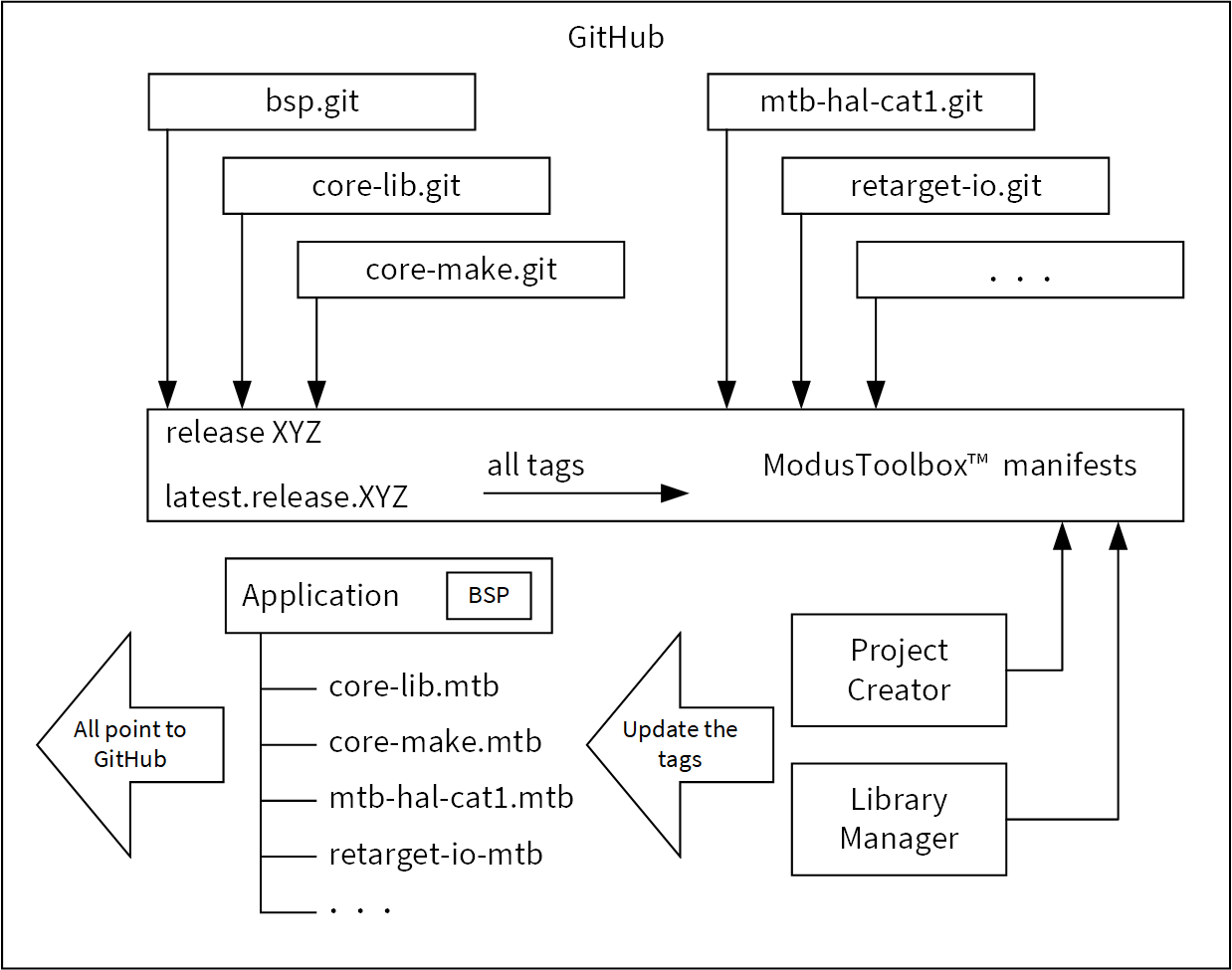
There are dependencies between the libraries. There are two types of dependencies:
Git repo dependencies via .mtb files
Dependencies for various libraries are specified in the manifest file. Only the top-level application will have .
mtb
files for the libraries it directly includes.
Regular C dependencies via #include
Our libraries only call the documented public interface of other Libraries. Every library declares its version in the header. The consumer of the library including the header checks if the version is supported, and will notify via
#error
if the newer version is required. Examples of the dependencies:
The Device Support library (PDL) driver is used by the Middleware.
The configuration generated by the Configurator depends on the versions of the device support library (PDL) or on the Middleware headers.
Similarly, if the configuration generated by the configurator of the newer version than you have installed, the notification via the build system will trigger asking you to install the newer version of the ModusToolbox™ software, which has a fragmented distribution model. You are allowed and empowered to update libraries individually.