Setup program GUI description
The main GUI window of the ModusToolbox™ Setup program contains the following elements:
- Main menu
- Main toolbar
- Packages view
- Log panel
Menus
The main application menu consists of multiple menu item groups as defined below.
File
The File menu consists of the following menu items:
| Menu item | Description |
|---|---|
| Login / Logout | The login function provides access to installable packages from the IDC. The login is the same as the IDC login. If you don't already have an account, you can create one at https://community.infineon.com. |
| Refresh | Checks the server for any updates and refreshes the Setup program. |
| Show Downloads | Opens a folder on disk to show the various downloaded executable files for the packages that were selected. |
| Preferences | Opens the Preferences dialog. |
| Exit | Exits the ModusToolbox™ Setup program. |
Help
The Help menu consists of the following menu items:
-
View Help - Opens this document.
-
Check for updates - Manually checks to see if there are any updates to the Setup program itself. The tool can be configured to check for updates on startup. If updates are available, the ModusToolbox™ Setup Installer package is downloaded and executed once the program is closed.
-
About - Opens the About box for version information, with links to open https://www.infineon.com , the current session log file, and the Infineon Developer Center Launcher Service log file.
Main toolbar
The main toolbar consists of the following:
-
Login / Logout : While Login is visible, Logout is not. When you are logged in, your email address is displayed along with the Logout button.
-
Refresh : initiates a refresh of the list of available packages.
-
Preferences : opens the Preferences dialog .
-
User Guide : opens this document.
-
New to ModusToolbox? : opens an introductory document for new users .
Packages view
The Setup program gathers package data from the IDC online and local tools registry, and then displays all installed and available packages along with version information. For the purposes of this document, a package includes ModusToolbox™ platform tools, patches, packs, programming tools, and other tools such as the Memory Analyzer. The Setup program displays a list of the available packages, grouped by two categories:
-
Base Installation, IDEs, and Toolchain Packages : This includes the ModusToolbox™ tools packages, Eclipse, VS Code, and GCC.
-
Additional Packages : This includes all other packages relevant to the ModusToolbox™ ecosystem, including programming tools, technology packs, early access packs, and auxiliary tools.
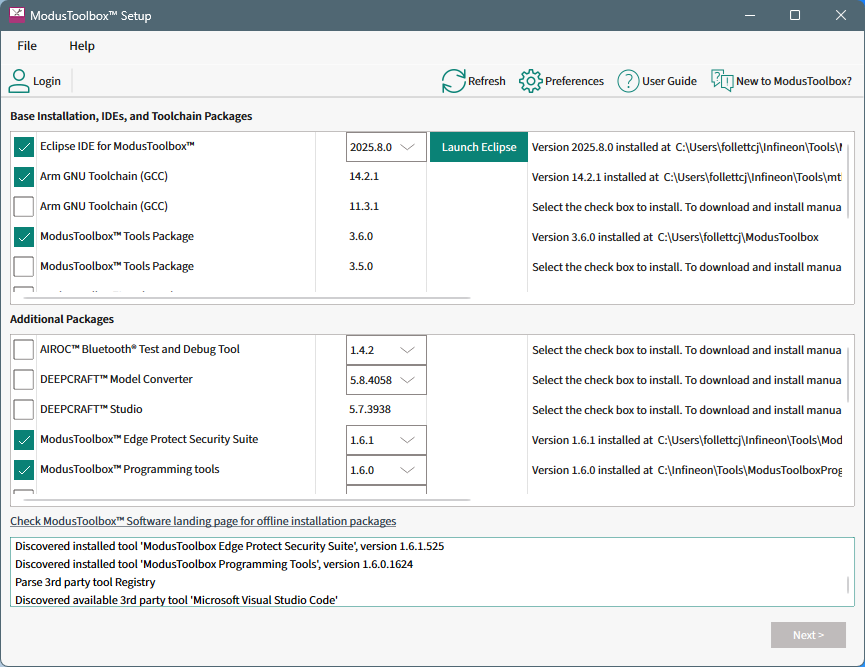
Some of the packages require you to be logged in to download and install, while others do not.
As you select various packages to install, the description on the right describes the action to take next. Installed packages show the path installed, and also provide a tooltip showing the path.
Log panel
The log panel area displays the information messages relevant for you. Examples of events that produce messages to the panel view:
- Logged in/logged out
- Completed/failed downloading the tool data from the online tool registry
- Package was selected/deselected in the tool selection view
- Dependent package version was changed (to satisfy the updated tool dependency constraints)
- Tool configuration (installation mode, target directory was changed)
- Tool download started/finished
- Tool installation/uninstallation started/finished
See How to collect logs in the troubleshooting section.
Preferences dialog
You can open the Preferences dialog from the main menu or main toolbar button.
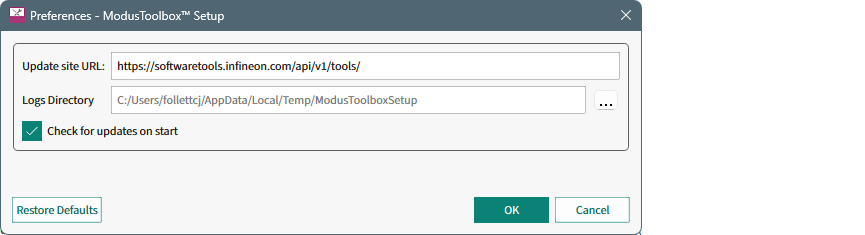
The following settings are available:
-
Update site URL : The address of the IDC Online Tools registry. Usually there is no need to customize this address to a non-default URL.
-
Logs Directory : The path to the directory where log files are stored. By default, this is the system temporary directory.
Note: After choosing a directory for logs, the program will create a "ModusToolboxSetup" sub-folder there where log files are kept.
-
Check for updates on start : disable this option to prevent the program from automatically checking for an update at each start.
Use the Restore Defaults button to revert the options back to their default values.