Programming operations
This chapter covers the various programming operations you can perform using the ModusToolbox™ Programmer tool.
- Erase device
- Program device
- Program device and Reset Chip
- Program binary file with Offset
- Program External Memory
- Program PSOC™ 6/Control C3/Edge E84 MCU in JTAG chain
- Verify device
- Verify device with External Memory
- Verify custom flash regions
- Read device
- Program eFuse region of PSOC™ 6/TRAVEO™ T2G/XMC7xxx/XMC5xxx MCU
- Program chip-protected/Kill Mode for PSOC™ 4 MCU
- Program secure AIROC™ CYW20829 MCU
- Program QSPI memory with patched flashloader
- Program AIROC™ CYW955513EVK-01, CYW955913EVK-01, and CYW9M2BASE-43012BT boards
- Update KitProg3 Board Name
Erase device
- Connect to the device (see Connect device ).
- Click the Erase button.
ModusToolbox™ Programmer erases the device and displays various messages in the Log. Then, a message in the Status Bar indicates that the device was erased successfully or that an error occurred.

Program device
- Connect the device to the host computer and select it in the Programmer/Board ID , Board Name , and Device drop-downs.
- Select the programming file as described in Load programming file section.
- Connect to the device (see Connect device ).
- Click the Program button.
ModusToolbox™ Programmer programs the device and displays various messages in the Log. Then, a message in the Status Bar indicates that device was programmed successfully or that an error occurred.

Program device and Reset Chip
- Connect the device to the host computer and select it in the Programmer/Board ID , Board Name , and Device drop-downs.
- Select the programming file as described in the Load programming file section.
- Connect to the device (see Connect device ).
- Select the Reset Chip check box under Program Settings .
- Click the Program button.
ModusToolbox™ Programmer programs the device and displays various messages in the Log. Then, a message in the Status Bar indicates that the device was programmed successfully or that an error occurred.
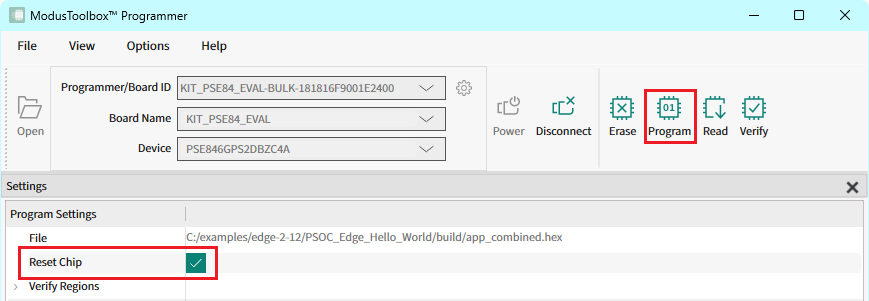
The target device is reset and running.
Program binary file with Offset
- Connect the device to the host computer and select it in the Programmer/Board ID , Board Name , and Device drop-downs.
- Select a binary programming file as described in the Load programming file section.
- Connect to the device (see Connect device ).
- Enter the desired address in the Offset field under Program Settings .
- Click the Program button.
ModusToolbox™ Programmer programs the device and displays various messages in the Log. Then, a message in the Status Bar indicates that the device was programmed successfully or that an error occurred.
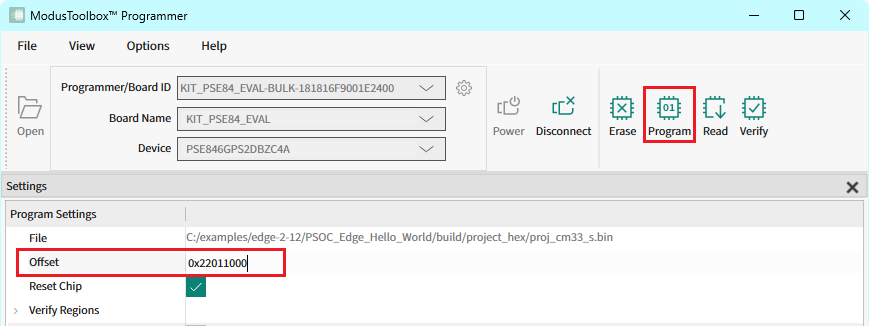
Offset options is available only for binary programming files.
Program External Memory
-
Attach and select a device that supports external memory (for example, CY8CKIT-062-WiFi-BT with QSPI support).
-
Select the External Memory option under Program Settings .
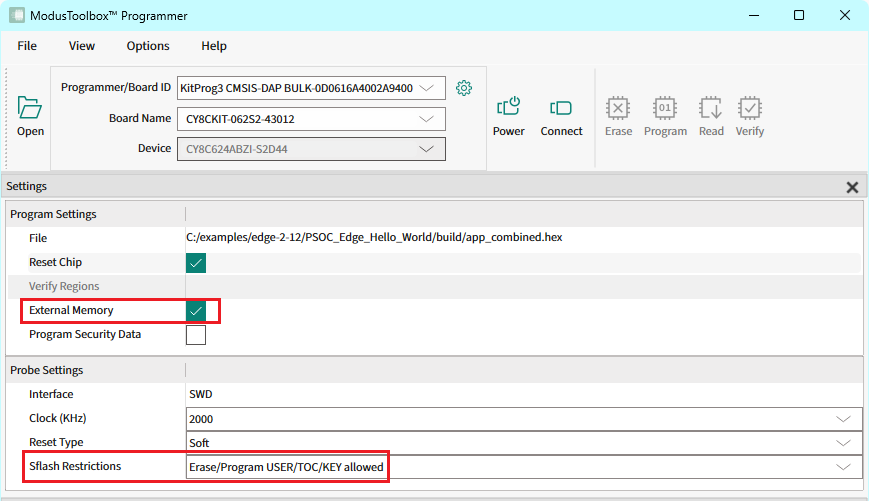
-
Select the programming file as described in the Load programming file section. The programming file should contain external memory region(s) and correct QSPI configuration data.
-
For PSOC™ 6 devices only, select Erase/Program USER/TOC/KEY allowed option under Probe Settings > Sflash Restrictions .
-
Connect to the device (see Connect device ).
-
Click the Program button.
ModusToolbox™ Programmer programs the device and displays various messages in the Log. Then, a message in the Status Bar indicates that the device was programmed successfully or that an error occurred.
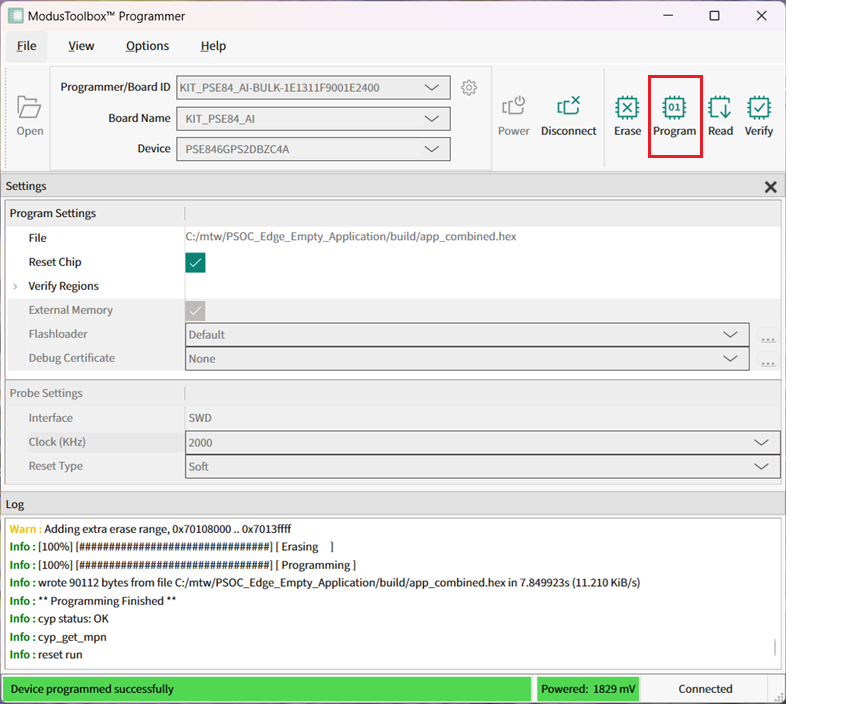
Program PSOC 6/Control C3/Edge E84 MCU in JTAG chain
-
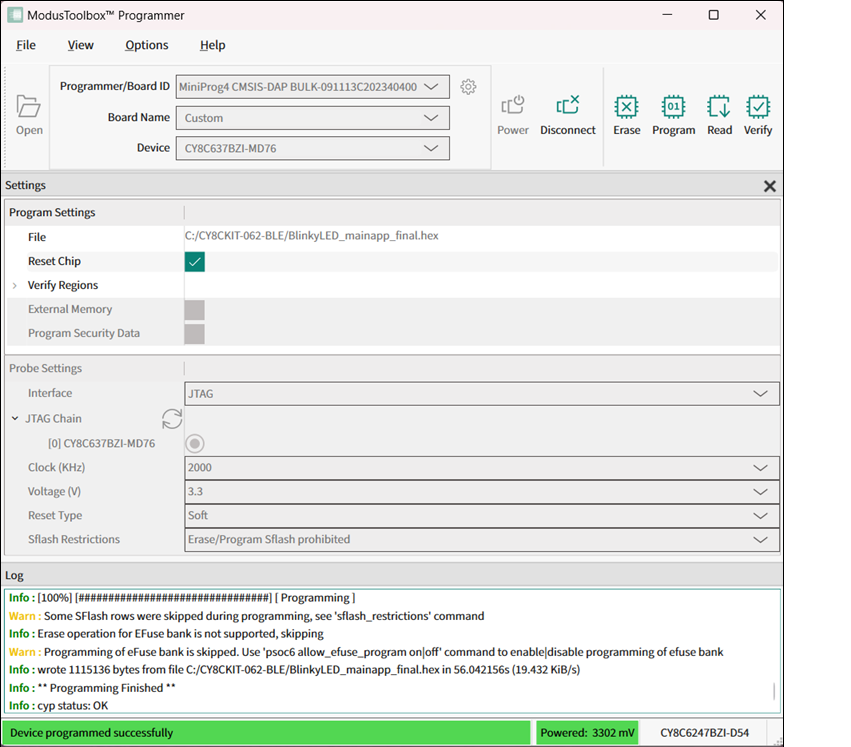
Connect the host computer to a MiniProg4 or J-Link probe attached to several MCU targets in the JTAG chain.
The following hardware configuration is used in this example:
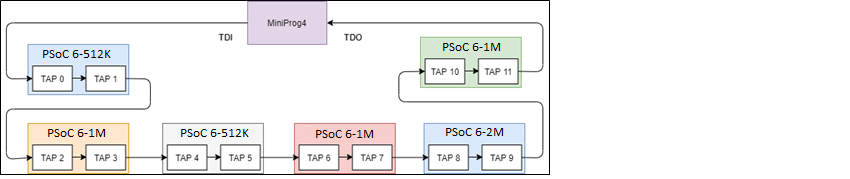
The sample JTAG chain configuration contains six serially-connected PSOC™ MCU targets.
-
Select the MiniProg4 probe and target device in the Programmer/Board ID , Board Name , and Device drop-downs, and ModusToolbox™ Programmer will display information under Probe Settings . Ensure the JTAG chain is powered.
-
Select the JTAG interface in the Interface drop-down.
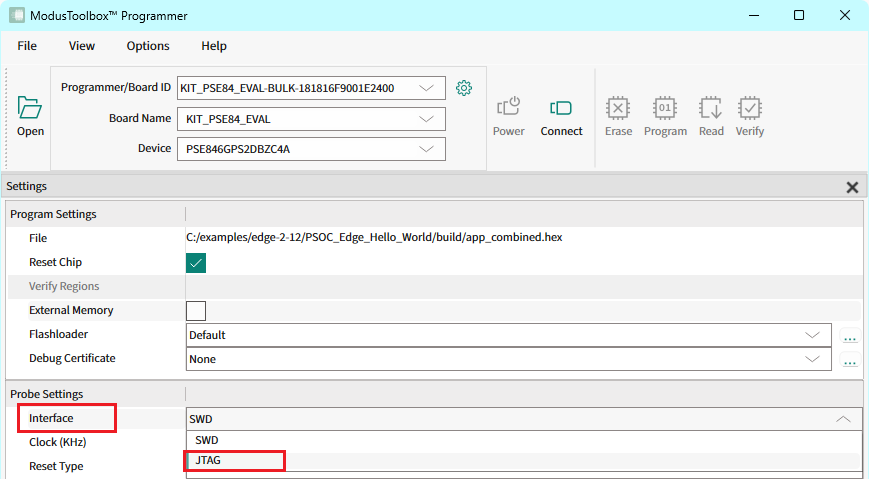
ModusToolbox™ Programmer queries the JTAG chain and displays detected devices under the JTAG Chain option in Probe Settings. The list of devices in the chain contains target names for supported devices and ID codes for those which are not supported.
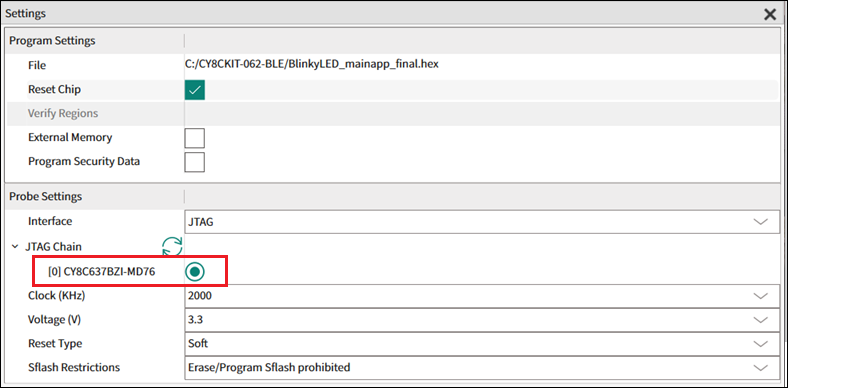
-
Select the desired target device in the list by clicking the radio button next to the target name.
-
Select the programming file as described in the Load programming file section.
-
Click Connect . ModusToolbox™ Programmer communicates with the device and displays various messages in the Log . Then, a message in the Status Bar indicates that it is connected.
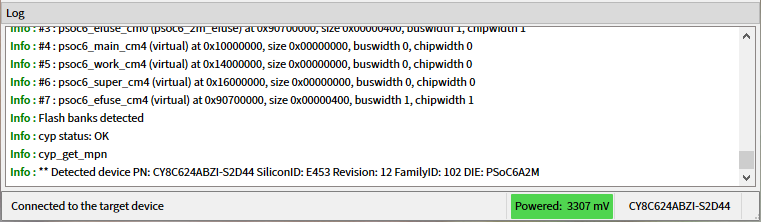
-
Click the Program button.
ModusToolbox™ Programmer programs the device and displays various messages in the Log. Then, a message in the Status Bar indicates that the device was programmed successfully or that an error occurred.
Verify device
- Connect the device to the host computer and select it in the Programmer/Board ID , Board Name , and Device drop-downs.
- Select the programming file as described in the Load programming file section.
- Connect to the device (see Connect device ).
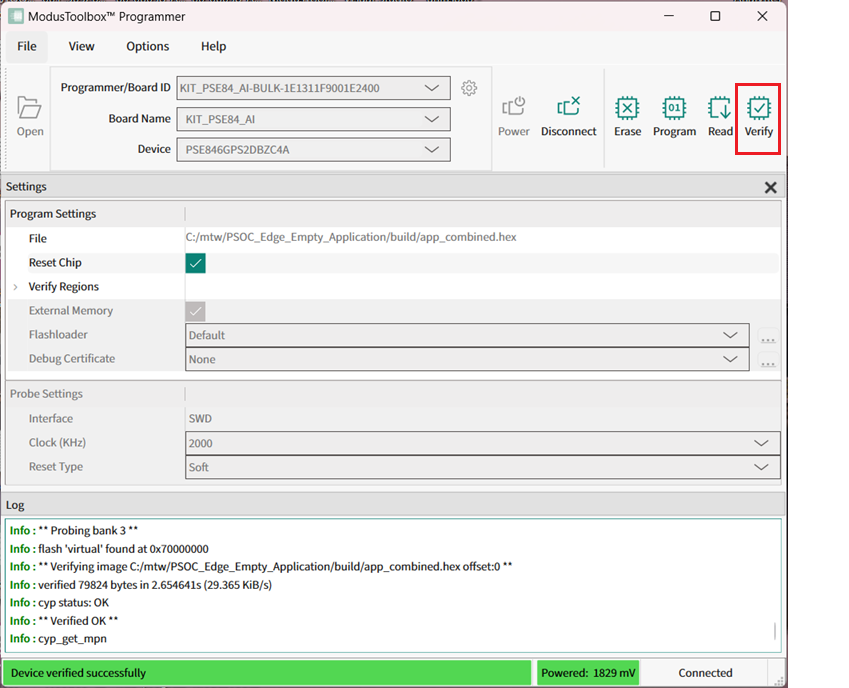
- Click the Verify button.
ModusToolbox™ Programmer performs the Verify device operation and displays various messages in the Log. Then, a message in the Status Bar indicates that the device was verified successfully or that an error occurred.
Verify device with External Memory
-
Connect the device that supports external memory (for example, CY8CKIT-062-WiFi-BT with QSPI support) to the host computer and select it in the Programmer/Board ID , Board Name , and Device drop-downs.
-
Select the programming file as described in the Load programming file section. The programming file should have external memory region(s).
-
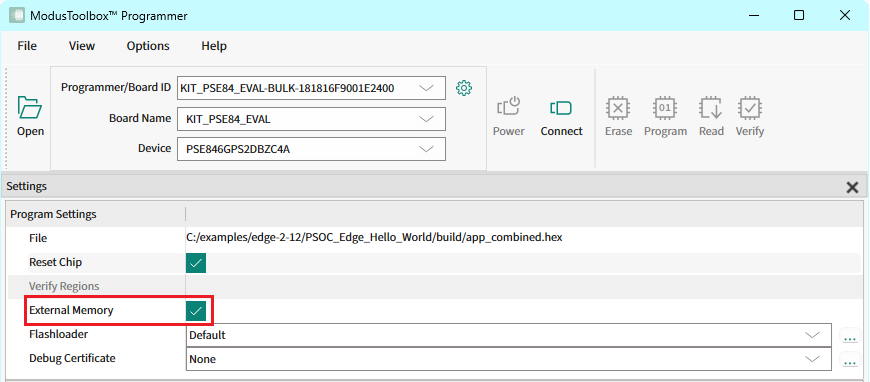
Select the External Memory option under Program Settings .
-
Connect to the device (see Connect device ).
-
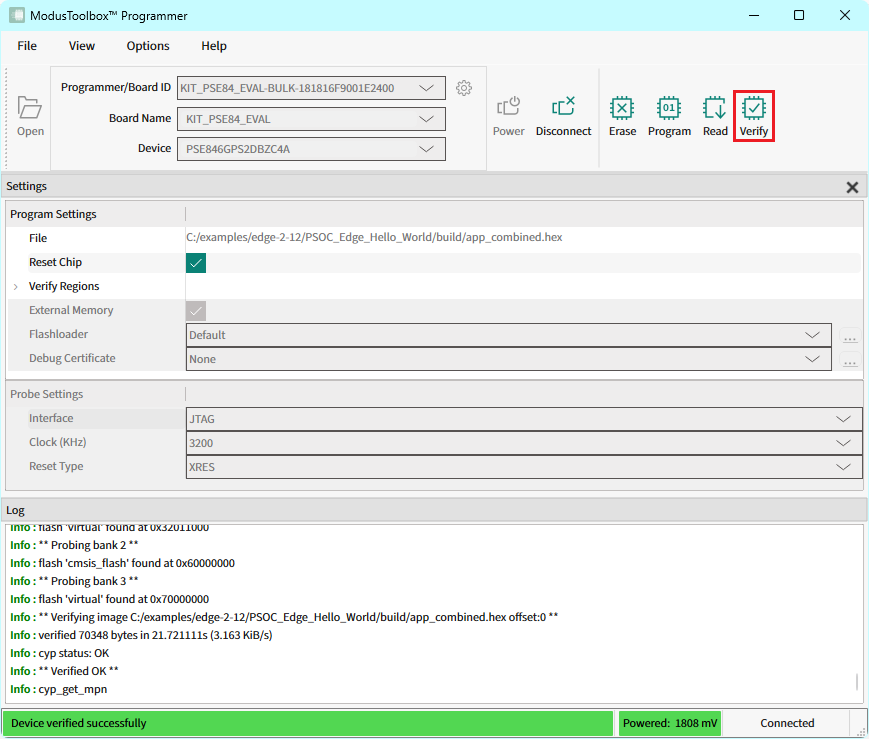
Click the Verify button.
ModusToolbox™ Programmer verifies the device and displays various messages in the Log. Then, a message in the Status Bar indicates that the device was verified successfully or that an error occurred.
Verify custom flash regions
-
Connect the device to the host computer and select it in the Programmer/Board ID , Board Name , and Device drop-downs.
-
Select the programming file as described in the Load programming file section.
-
Connect to the device (see Connect device ).
-
Expand Verify Regions option in Program Settings to see the list of flash regions available for verification. By default, only supported by target device regions are displayed:
- application
- AUXflash
- Sflash
- eFuse
- QSPI
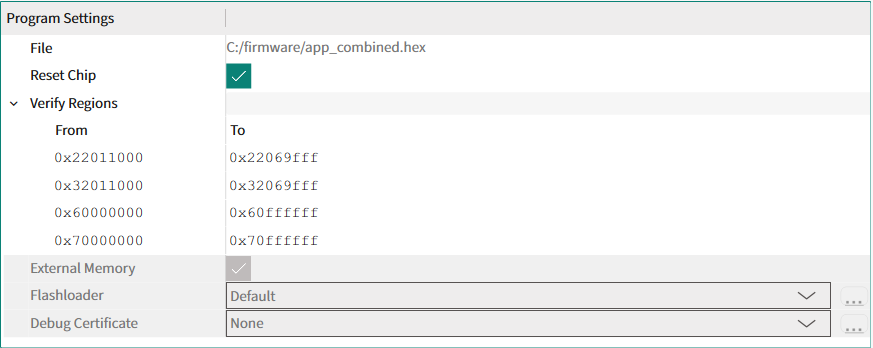
-
Right-click on Verify Regions or any region entry to open the context menu.
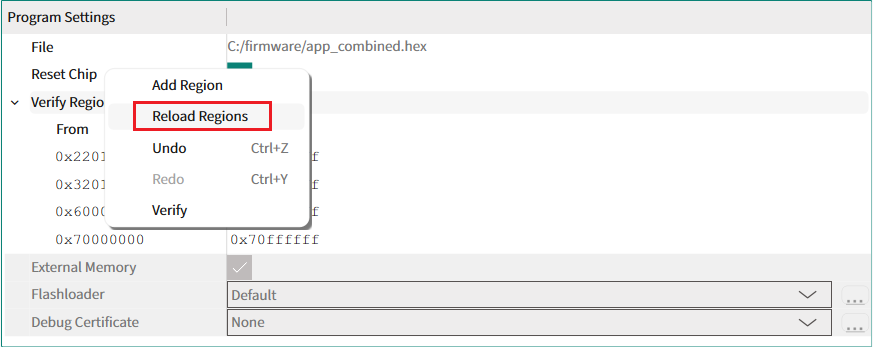
-
To add a custom flash region, select Add Region . Select the added list entry, and enter the correct values for start and end addresses of the region.
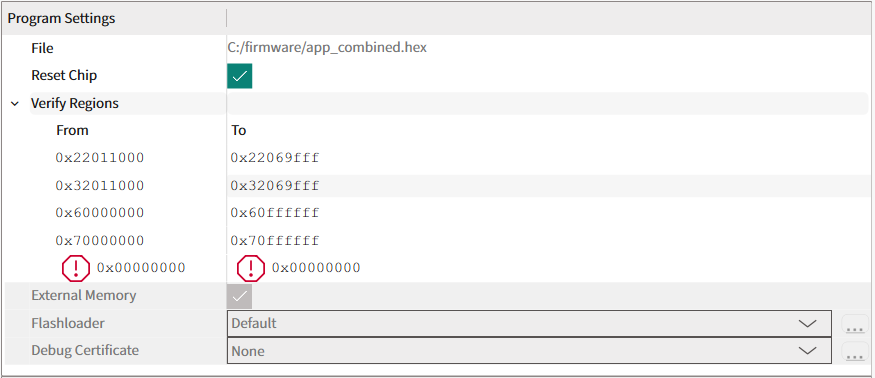
-
To remove any region in the list, right-click the desired region entry and select Remove Region .
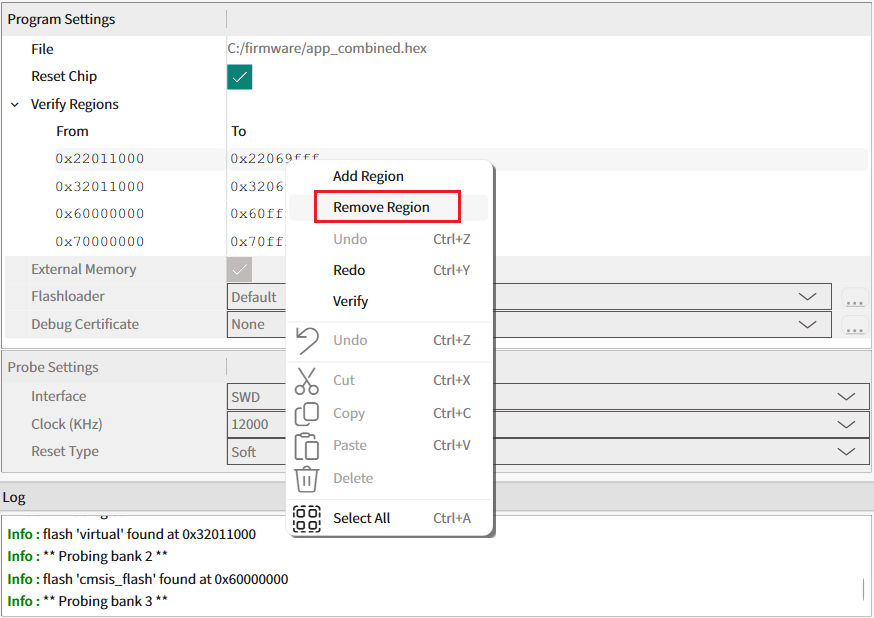
-
To revert any previous change, select Undo .
-
When finished with the list of regions, start device verification by clicking the Verify button on the toolbar.

You can also select Verify on the context menu.
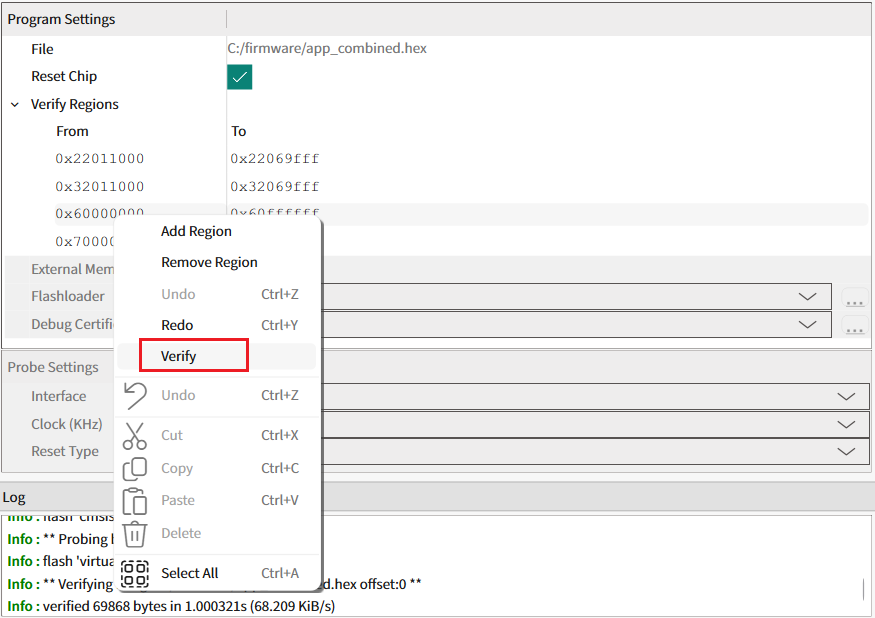
ModusToolbox™ Programmer verifies only the regions specified in the Verify Regions list. Then, a message in the Status Bar indicates that the device was verified successfully or that an error occurred.
-
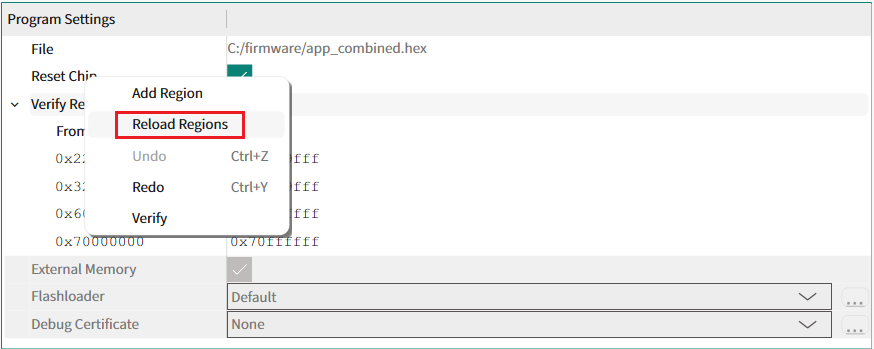
To reset the Verify Regions list to its default state select Reload Regions from the context menu. This action will remove all custom regions and load default regions corresponding to the flash map.
Read device
-
Connect the device to the host computer and select it in the Programmer/Board ID , Board Name , and Device drop-downs.
-
Connect to the device (see Connect device ).
-
Click the Read button.

-
On the Read Device to File dialog, navigate to the location of the HEX or SREC file to be saved, enter the file name, select the file type in the Save as type drop-down, and click Save .
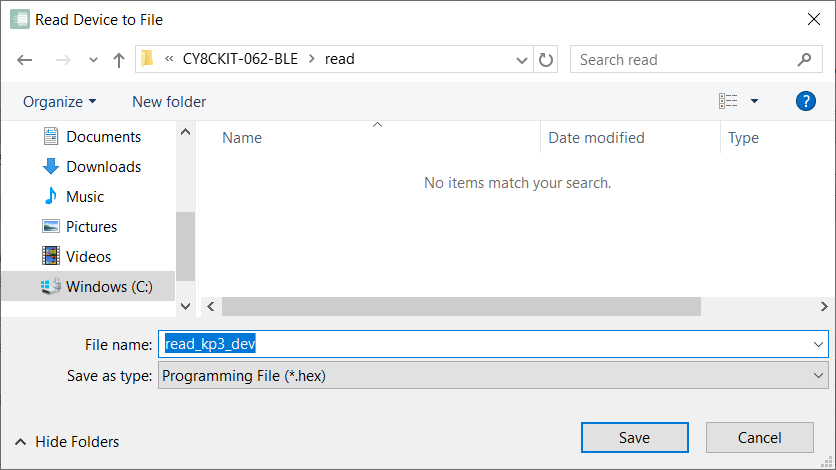
Under Ubuntu Linux, specify the full file name with an extension (e.g. kp3-dev.srec); otherwise, the file will be saved in HEX format.
ModusToolbox™ Programmer performs the Read device operation and displays various messages in the Log. Then, a message in the Status Bar indicates that the device was read successfully or that an error occurred.
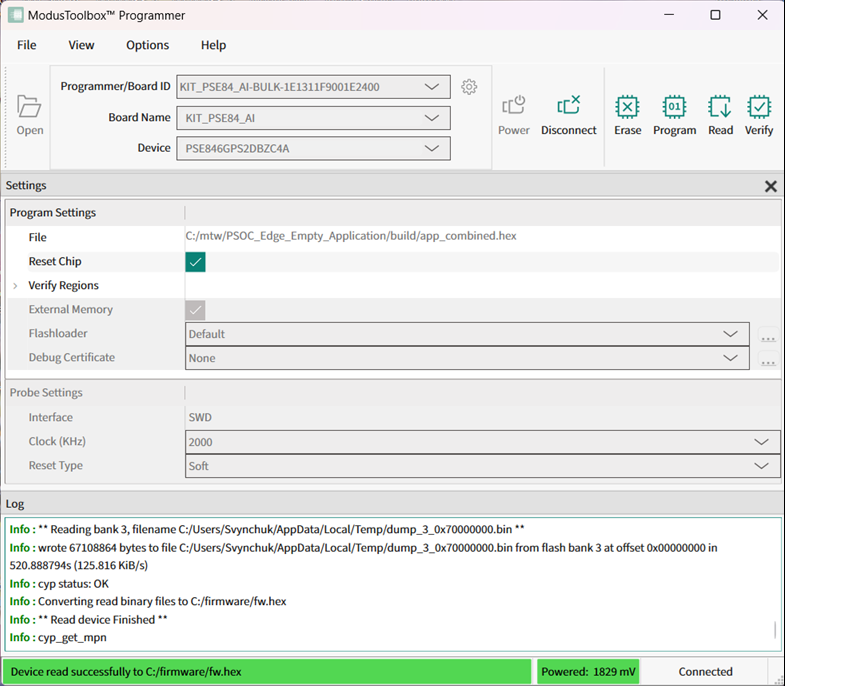
Read Device feature is not available for the boards based on WICED-Bluetooth hardware programmers.
Program eFuse region of PSOC 6/TRAVEO T2G/XMC7xxx/XMC5xxx MCU
-
Connect the device to the host computer and select it in the Programmer/Board ID , Board Name , and Device drop-downs.
-
Select the programming file as described in the Load programming file section. The programming file should contain valid eFuse data region (at address 0x90700000).
-
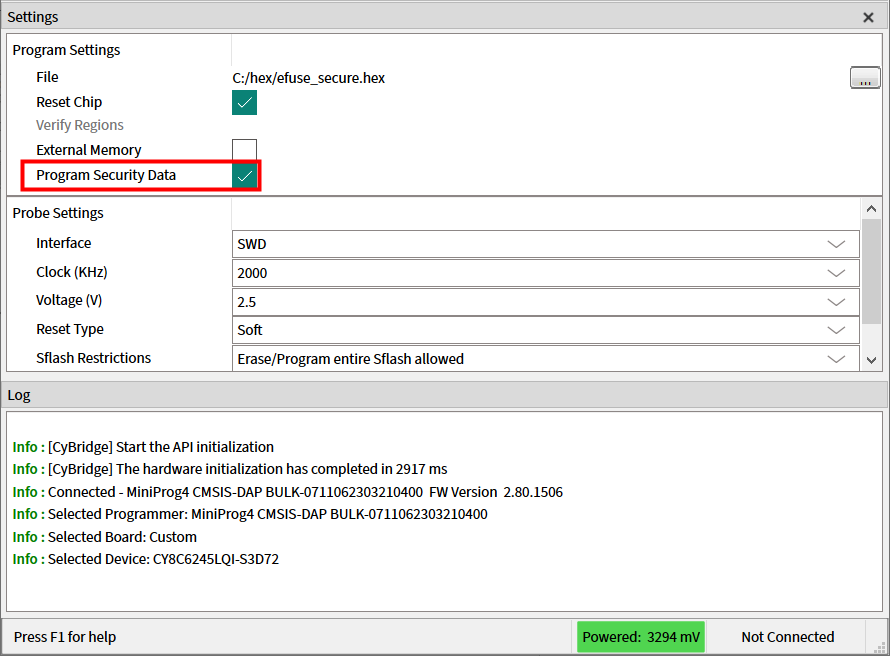
Select the Program Security Data check box under Program Settings .
-
Connect to the device (see Connect device ).
-
Click the Program button.
ModusToolbox™ Programmer programs the device and displays various messages in the Log. Then, a message in the Status Bar indicates that the device was programmed successfully or that an error occurred.
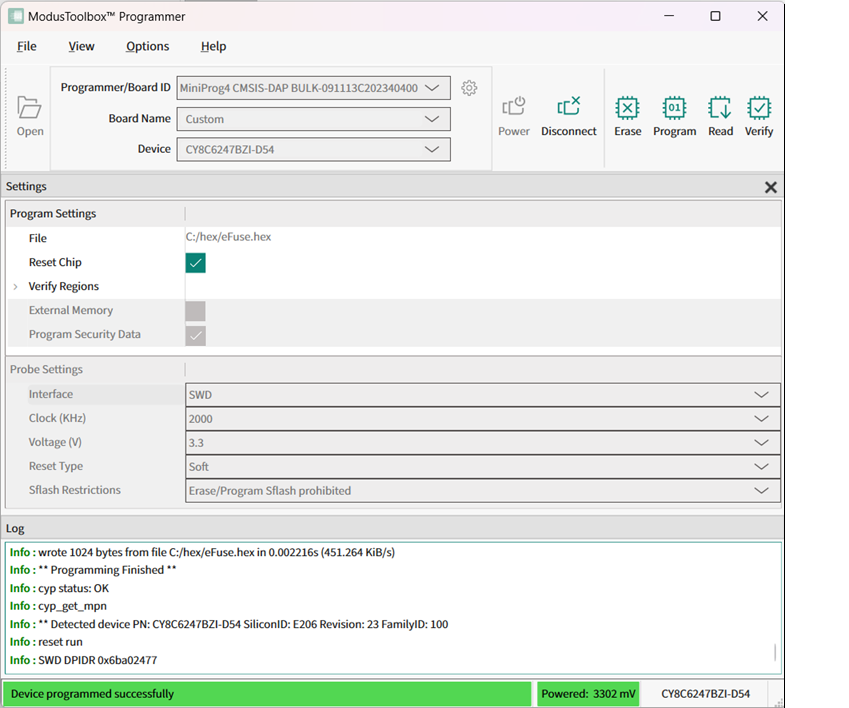
If some eFuse bits have been already programmed before, a warning message "The efuse bit at address xx has been already blown" appears in Log.

Program chip-protected/Kill Mode for PSOC 4 MCU
The chip-level protection mechanism restricts access of the programmer application to silicon resources. In this mode, access to flash, SRAM, and most of the registers in the PSOC™ 4, PMG1, PAG2s, and CCGx are disabled.
If you try to connect ModusToolbox™ Programmer to a chip-protected PSOC™ 4/CCGx device, a warning message indicates that the device is in protected mode. The only available operation is Erase device in this case.
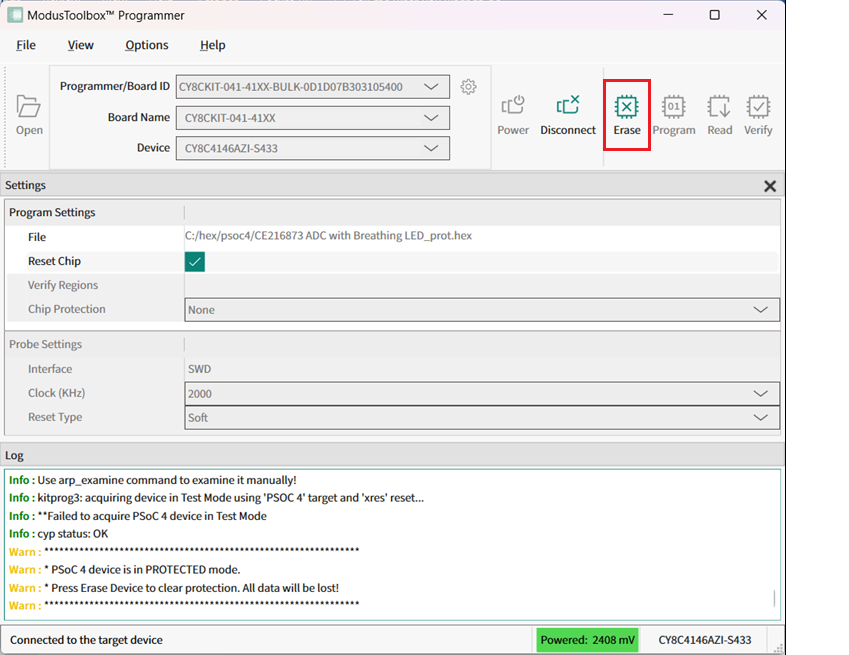
Use the Erase button to clear chip protection and move target to the open state.
Switch to Protected mode
This operation temporarily disables access to chip's resources.
-
Connect the device to the host computer and select it in the Programmer/Board ID , Board Name , and Device drop-downs.
-
Select the Chip Protection pull-down and select Protected mode.
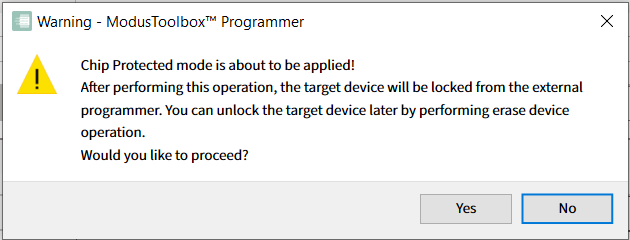
A warning message asking for confirmation is displays.
-
Click Yes to apply Protected mode for your PSOC™ 4, PMG1, PAG2S and CCGx.
When the operation completes, the log is appended with a message, and the device is disconnected from the programmer automatically.

Switch to Kill mode
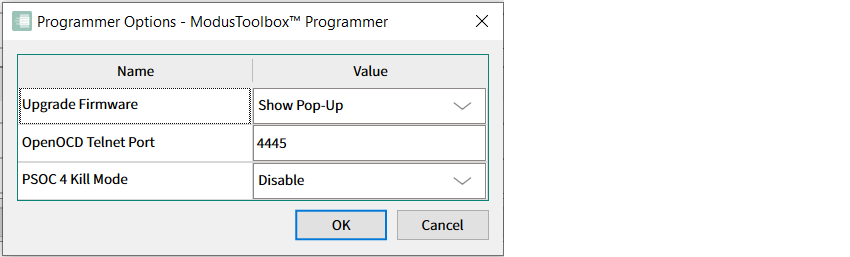
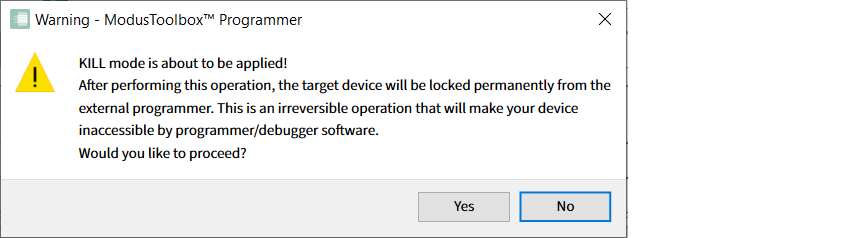
Be aware that after applying Kill mode your device will be permanently locked from any external debugger or programmer software. This operation is not reversible.
-
Connect the device to the host computer and select it in the Programmer/Board ID , Board Name , and Device drop-downs.
-
To use Kill mode, go to Options > Programmer Options and enable it in PSOC 4 Kill Mode drop-down.
-
Connect to the device (see Connect Device).
-
Click the Chip Protection pull-down and select Kill mode.
A warning message asking for confirmation is displays.
-
Click Yes to apply Kill mode for your PSOC™ 4, PMG1, PAG2S and CCGx.
When the operation completes, the log is appended with a message, and the device is disconnected from the programmer automatically.

Program secure AIROC CYW20829 MCU
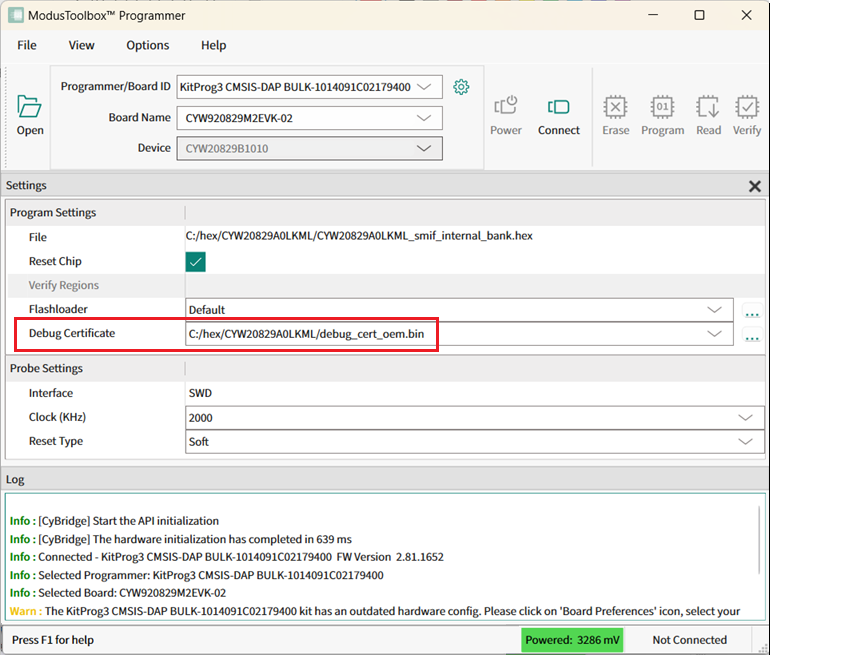
You can program the flash of an AIROC™ CYW20829 device in Secure lifecycle mode only by providing a valid debug certificate file.
-
Connect the device to the host computer and select it in the Programmer/Board ID , Board Name , and Device drop-downs.
-
Select the programming file as described in the Load programming file section.
-
Click on the Debug Certificate option under Program Settings and select the certificate file in the dialog.
The path will display under Settings.
-
Connect to the device (see Connect device ).
-
Click the Program button.
Program QSPI memory with patched flashloader
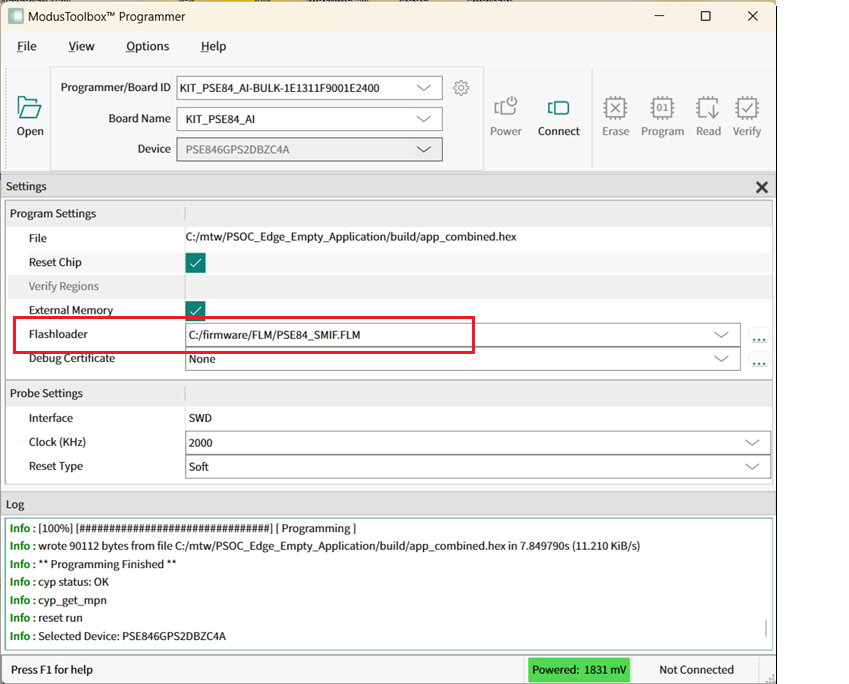
This feature is supported by AIROC™ CYW20829 devices, as well as PSOC™ Edge E84, XMC7100/7200 and CYT4Bx MCUs. It allows you to specify the patched flashloader file in FLM format along with the appropriate QSPI configuration. Patched flashloaders contain data about how your external memory is configured.
-
Connect the device to the host computer and select it in the Programmer/Board ID , Board Name , and Device drop-downs.
-
Select the programming file as described in the Load programming file section.
-
Select the External Memory option under Program Settings (if supported).
-
Click on the Flashloader option under Program Settings and select the patched flashloader (FLM) file in the dialog.
The path will display under Settings.
-
Connect to the device (see Connect device ).
-
Click the Program button.
To be able to program custom QSPI memory, you should also provide the appropriate QSPI configuration file (qspi_config.cfg) generated by the ModusToolbox™ QSPI Configurator tool. This file should be placed in the same directory as the patched flashloader file; it is located and read by ModusToolbox™ Programmer automatically.Refer to the QSPI Configurator user guide for more information about patching flashloaders.
Program AIROC CYW955513EVK-01, CYW955913EVK-01, and CYW9M2BASE-43012BT boards
-
Connect the device to the host computer and perform recover device procedure as described in How to recover AIROC™ Bluetooth® devices on failure .
-
Click the Programmer pull-down and select 'WICED Bluetooth-PortXX' programmer.
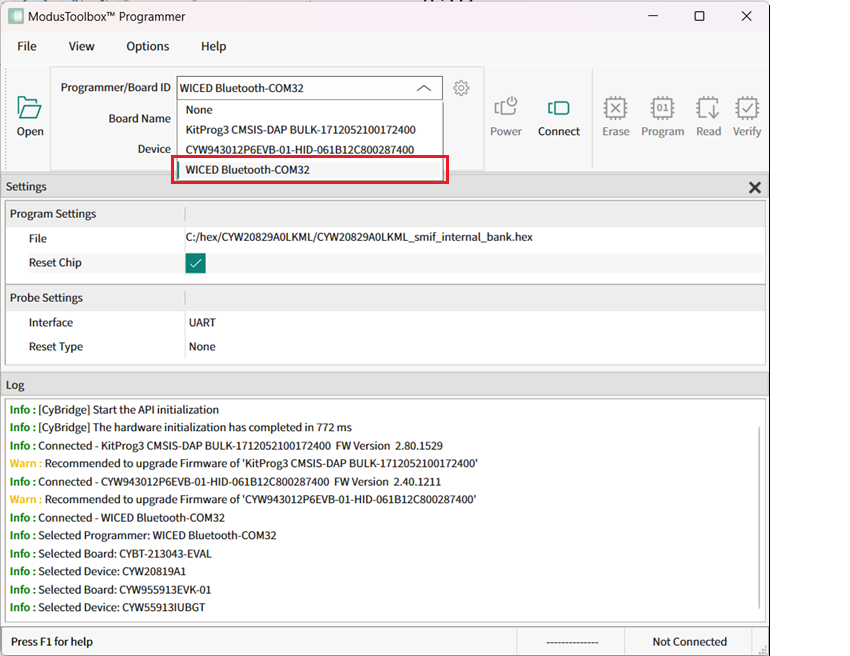
Note: The CYW9M2BASE-43012BT board should be switched to Dual UART mode first, otherwise the WICED Bluetooth® programmer will be unavailable in the Board Name pull-down menu. To do this, press the hardware 'Mode' button on the Kit, hold it for 3 seconds, then release it.
-
Open the Board Name pull-down and select the appropriate board name (e.g., CYW955513EVK-01)
-
Select the programming file as described in the Load programming file section.
-
Connect to the device (see Connect device ).
-
Click the Program button.
ModusToolbox™ Programmer programs the device and displays various messages in the Log. Then, a message in the Status Bar indicates that the device was programmed successfully or that an error occurred.
Update KitProg3 Board Name
Some KitProg3 development kits were released to market with missing board configuration in the EEPROM. In this case, the Programmer/Board ID displays the kit as generic KitProg3 device as:
KitProg3 CMSIS-DAP Bulk-1014091C02179400
Some development kits may require updating the name of the board after changing SOM modules on them for example:
KIT_PSE84_EVAL_EPC2 (EPC4).
-
Click on the Board Preferences button to update the name of your kit. The Board Preferences dialog opens.
-
As needed, click on the Show all boards check box to display the full list of supported names.
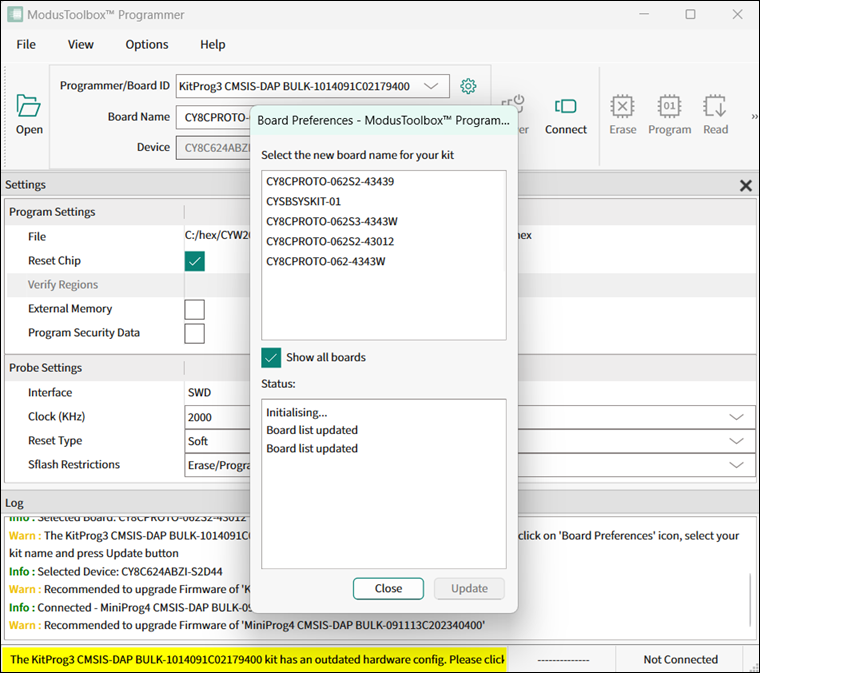
-
Select the correct board name for your kit in the list and click the Update button.
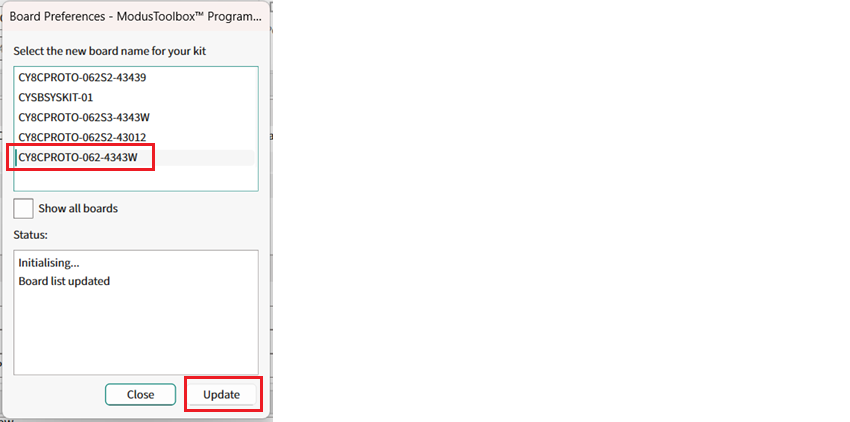
The tool checks if the selected name corresponds to the actual connected KitProg3 device. Board configuration is updated in the EEPROM of KitProg3. The success status and a new board name are displayed.
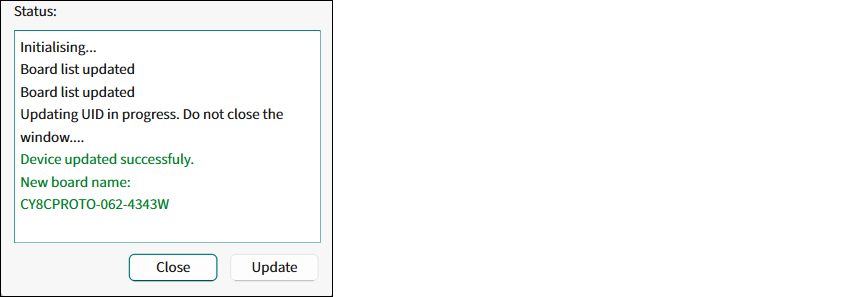
Note: The “Device not updated” error means an incorrect kit name was selected.
-
Click the Close button, the dialog closes and the updated board name displays in the pull-downs.
