Create application from template
ModusToolbox™ software includes the Project Creator as both a GUI tool and a command line tool to easily create ModusToolbox™ applications. The Project Creator tool clones the selected BSP and code example template(s), and then creates the directory structure at the specified location with the specified name. The Project Creator tools also run the required processes to download and import all the necessary libraries and dependencies.
Note:
This section describes creating a new application from a template. The process to import or share an existing application is covered in the
Using applications with third-party tools
chapter.
Project Creator GUI
The Project Creator GUI tool provides a series of screens to select a BSP and code example template(s), specify the application name and location, as well as select the target IDE. The tool displays various messages during the application creation process.
Open the Project Creator GUI tool from the Dashboard or as applicable for your operating system. The executable file is installed in the following directory, by default:
<install_path>/ModusToolbox/tools_<version>/project-creator/
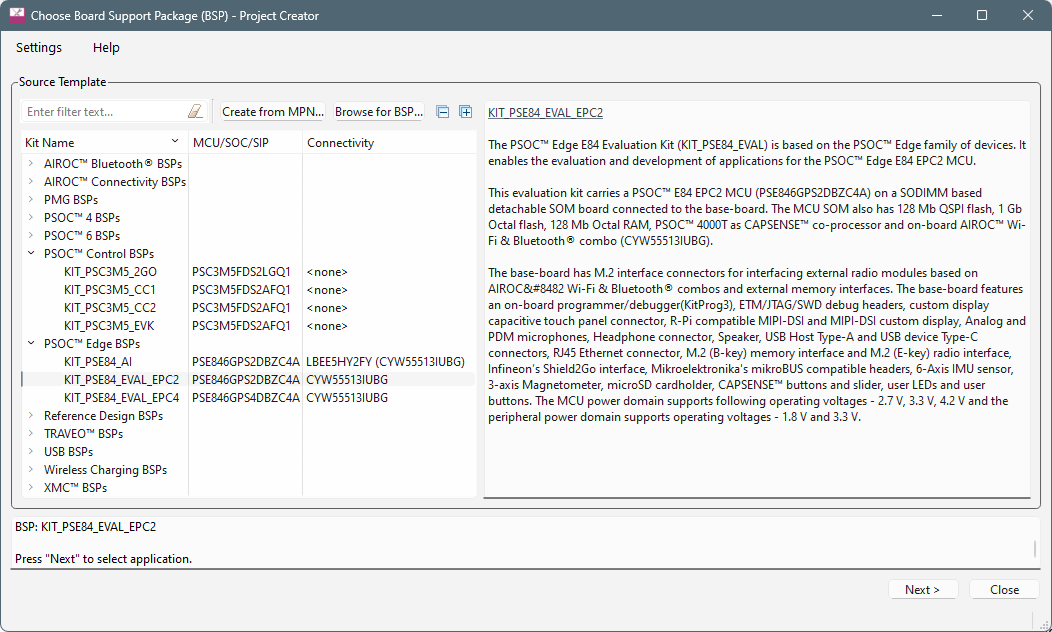
Refer to the
Project Creator user guide
for more details.
Note:
The
Target IDE
option (on the Select Application page) is used to generate necessary files for the selected IDE. The Dashboard passes any selected
Target IDE
to the Project Creator tool. If you launch the Project Creator GUI tool from the Eclipse-based IDE, if installed, the tool seamlessly exports the created application for use in the Eclipse IDE.
project-creator-cli
You can also use the project-creator-cli tool to create applications from a command-line prompt or from within batch files or shell scripts. The tool is located in the same directory as the GUI version (
<install_path>/ModusToolbox/tools_<version>/project-creator/
). To see all the options available, run the tool with the
-h
option:
./project-creator-cli -h
The following example shows running the tool with various options.
./project-creator-cli \
/project-creator-cli.exe \
--board-id KIT_PSC3M5_EVK \
--board-uri http://github-mirror.infineon.com/Infineon/TARGET_KIT_PSC3M5_EVK \
--board-commit latest-v2.X \
--app-id mtb-example-ce240510-hello-world \
--app-uri http://github-mirror.infineon.com/Infineon/mtb-example-ce240510-hello-world \
--app-commit latest-v1.X \
--target-dir C:/examples \
--user-app-name Hello_World \
--use-modus-shell
In this example, the project-creator-cli tool clones the Hello World code example template from our GitHub server (
). It also updates the
TARGET
variable in the
Makefile
to match the selected BSP (
--board-id
), and obtains the necessary library files. This example also includes options to specify the name (
--user-app-name
) and location (
--target-dir
) where the application will be stored.
Note:
You can run the
git clone
and
make getlibs
commands directly from a terminal; however, we recommend using the Project Creator tools (GUI or CLI) because some applications require additional processes to acquire all the submodules. If you choose to run the commands manually, make sure you thoroughly understand all the requirements of the selected application. Refer to the code example README.md file for details as needed.