Getting started
This section provides a basic walkthrough for how to create a couple applications using Eclipse, selecting a BSP. It also covers how to build and program them using Eclipse and basic launch configurations supplied for the applications.
- Installing Eclipse
- Launch Eclipse
- Configure tools & toolchains
- Open Project Creator tool
- Create an application
- Build application
- Program application
- Export/share application
- Import application
- Search online for code examples
- Search online for libraries/BSPs
- Access training material
Installing Eclipse
Beginning with the ModusToolbox™ tools package version 3.4.0, Eclipse for ModusToolbox™ is no longer included by default. Instead, it is a separate package that you can install via the ModusToolbox™ Setup program.
The Setup program is located on our website here: https://softwaretools.infineon.com/tools/com.ifx.tb.tool.modustoolboxsetup. It is used to install base packages and additional packages on Windows, Linux, and macOS. Refer to the ModusToolbox™ software installation guide for specific instructions.
Launch Eclipse
Eclipse is installed in the following directory, by default:
C:\Users[UserName]\Infineon\Tools\ModusToolboxEclipse
If the software is not installed in the default location, you will need to set an environment variable. Refer to the ModusToolbox™ software installation guide for details.
To launch Eclipse:
- On Windows, select Eclipse for ModusToolbox™ [version] item from the Start menu.
- For other operating systems, run the "modustoolbox" executable file.
- You can also launch Eclipse from the dashboard for all operating systems. For more information refer to the dashboard user guide .
When launching Eclipse, it provides an option to select the workspace location on your machine. This location is used by Eclipse for creating and storing the files as part of application creation for a particular platform. The default workspace location is a folder called "mtw" in your home directory. You may add additional folders under the "mtw" folder or to choose any other location for each workspace.
For more details about Eclipse, refer to Eclipse documentation, as well as the Eclipse survival guide.
Configure tools & toolchains
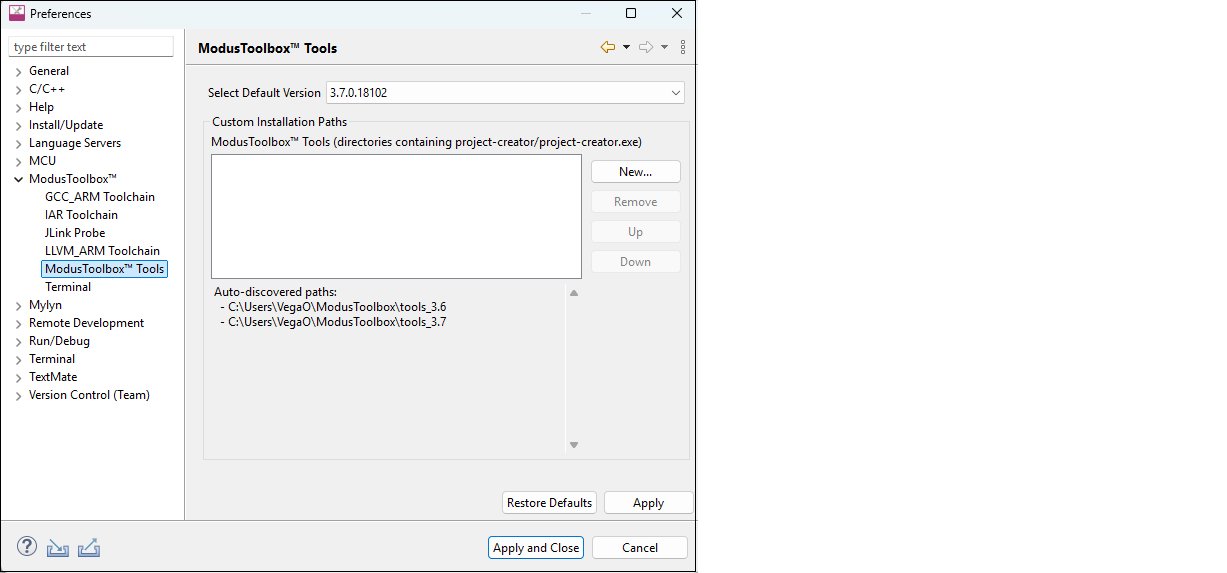
To configure Tools and Toolchains, open the Preferences menu and select ModusToolbox™ Tools.
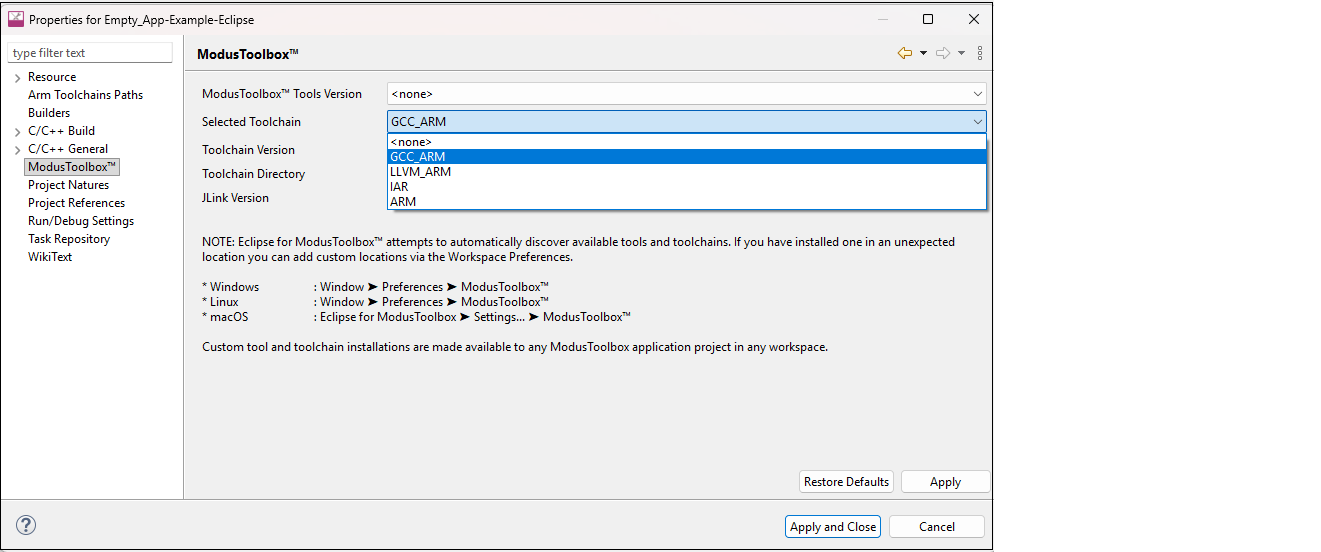
To select your preferred toolchain, open the Properties menu and choose between the different toolchain options.
See the table below for more specific information on available tools and toolchains.
| Sub-pane | Purpose |
|---|---|
| GCC_ARM Toolchain | View auto-discovered GCC_ARM toolchains and provide custom install paths when necessary. Auto-discovery will find installations installed by ModusToolbox™ Setup program. |
| IAR Toolchain | View auto-discovered IAR toolchains and provide custom install paths when necessary. Auto-discovery will look for IAR toolchain installations in the common search directories (defined below). |
| JLink Probe | View auto-discovered SEGGER J-Link installations provide custom install paths when necessary. Auto-discovery will look for SEGGER J-Link toolchain installations in the common search directories (defined below). Note: J-Link installation directories must include the version number (e.g., C:\Program Files\SEGGER\JLink_V896 |
| LLVM_ARM Toolchain | View auto-discovered LLVM_ARM toolchains and provide custom install paths when necessary. Auto-discovery will look for LLVM_ARM toolchain installations in the common search directories (defined below). |
| Terminal | Integrated terminal used to enter various commands for the selected project. Note: For more information on this sub-pane, see Use integrated terminal |
Common auto-discovery search directories for each OS include:
Windows:
%ProgramFiles%(typicallyC:\Program Files)%ProgramFiles(x86)%(typicallyC:\Program Files (x86))%ProgramFiles(Arm)%(typicallyC:\Program Files (Arm))%USERPROFILE%(user's home directory)C:\root of drive C:
Linux:
/usr/local//opt/$HOME(user's home directory)
macOS:
/Applications//usr/local//opt/$HOME(user's home directory)
The ARM toolchain is not supported by the Tools & Toolchain configuration preferences. It continues to use the CY_COMPILER_ARM_DIR environment variable.
Open Project Creator tool
Click the New Application link in the Eclipse Quick Panel.
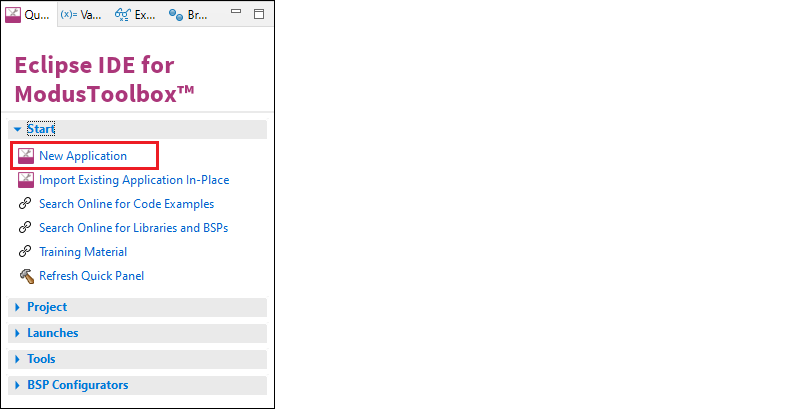
You can also select File > New > ModusToolbox™ Application.

These commands launch the Project Creator tool, which provides several applications for use with different development kits. The kits available may change over time.
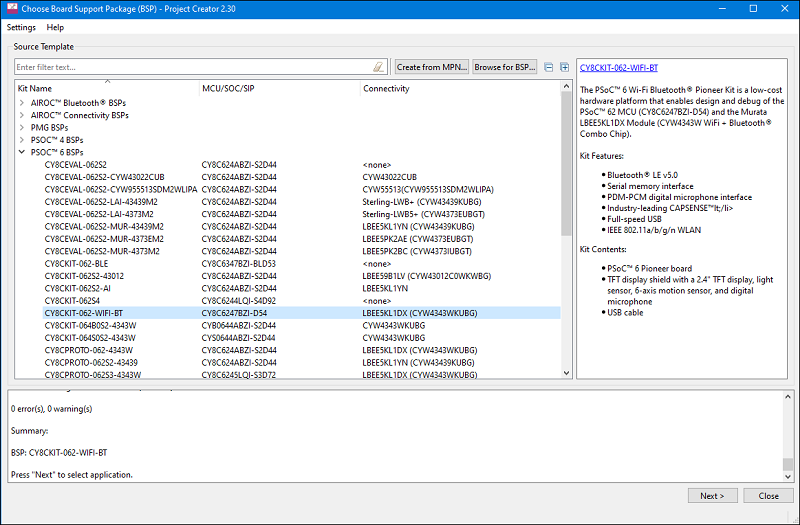
For more details about using this tool, refer to the Project Creator user guide.
Create an application
This section provides a walkthrough for creating a ModusToolbox™ application.
Choose board support package
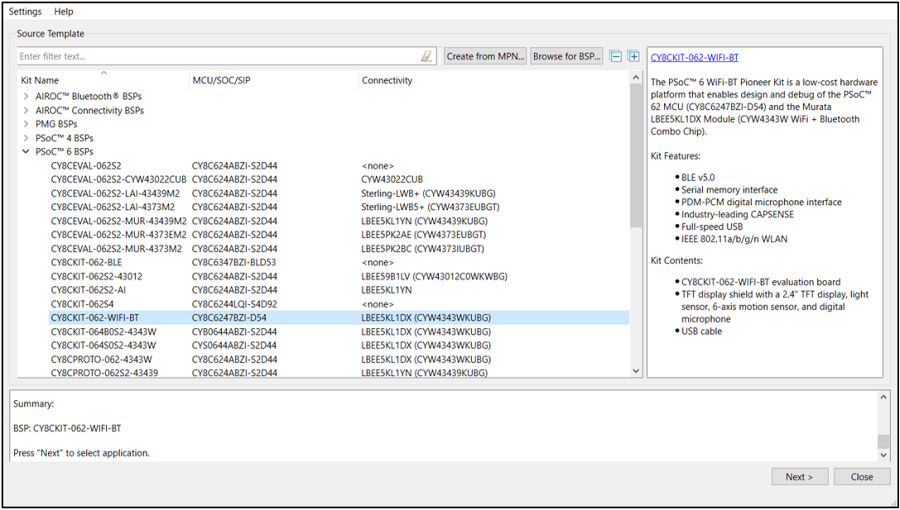
The Project Creator tool displays a list of boards, showing the Kit Name, MCU, and Connectivity Device (if applicable). As you select each of the kits shown, the description for that kit displays on the right. Depending on the settings for your system, you may see different categories, including PSOC™ 4, PSOC™ 6, and AIROC™ Bluetooth® BSPs. For this example, select the CY8CKIT-062-WIFI-BT kit.
Select application
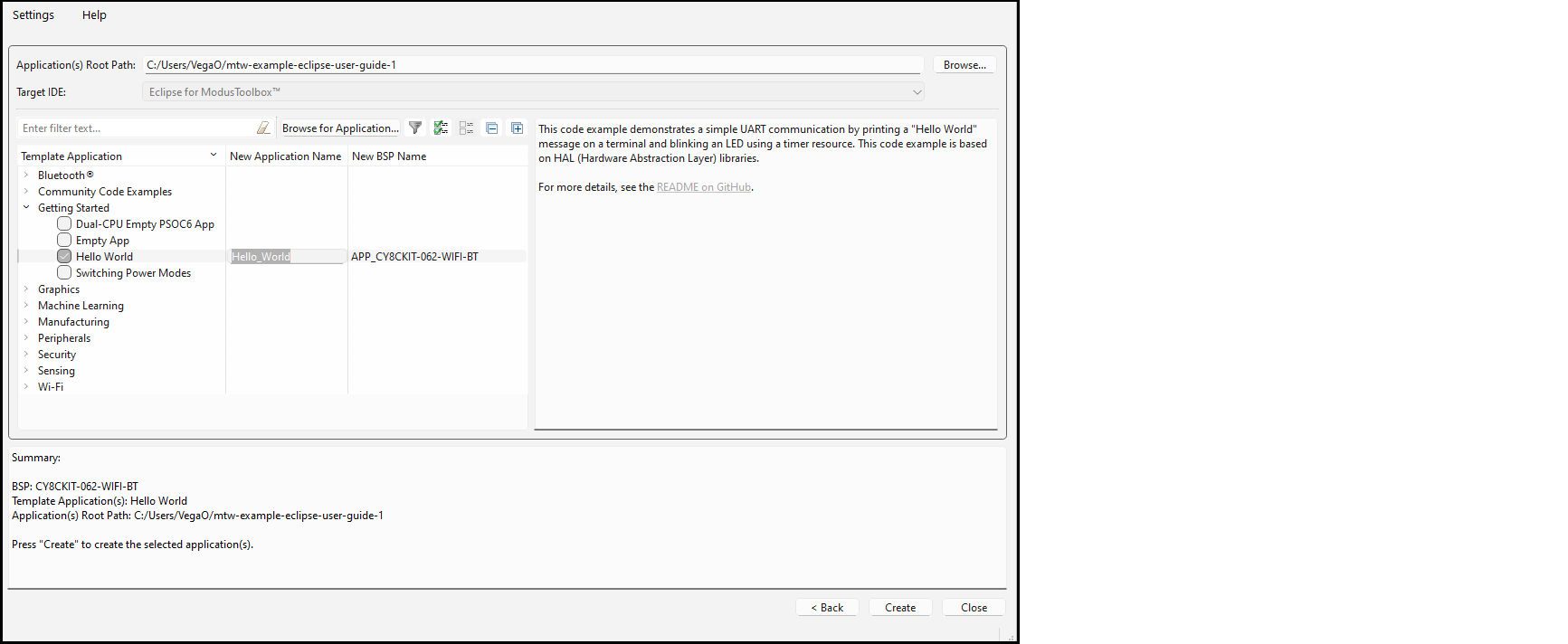
Click Next > to open the Select Application page. This page lists various applications available for the selected kit. As you select an application, a description displays on the right. You can select multiple applications for the selected BSP by enabling the check box next to the applicable applications.
For this example:
- Select the check box next to the "Hello World" application.
- If desired, type a name for the application and/or BSP. Do not use spaces.
Create application
Click Create to begin the application creation process.
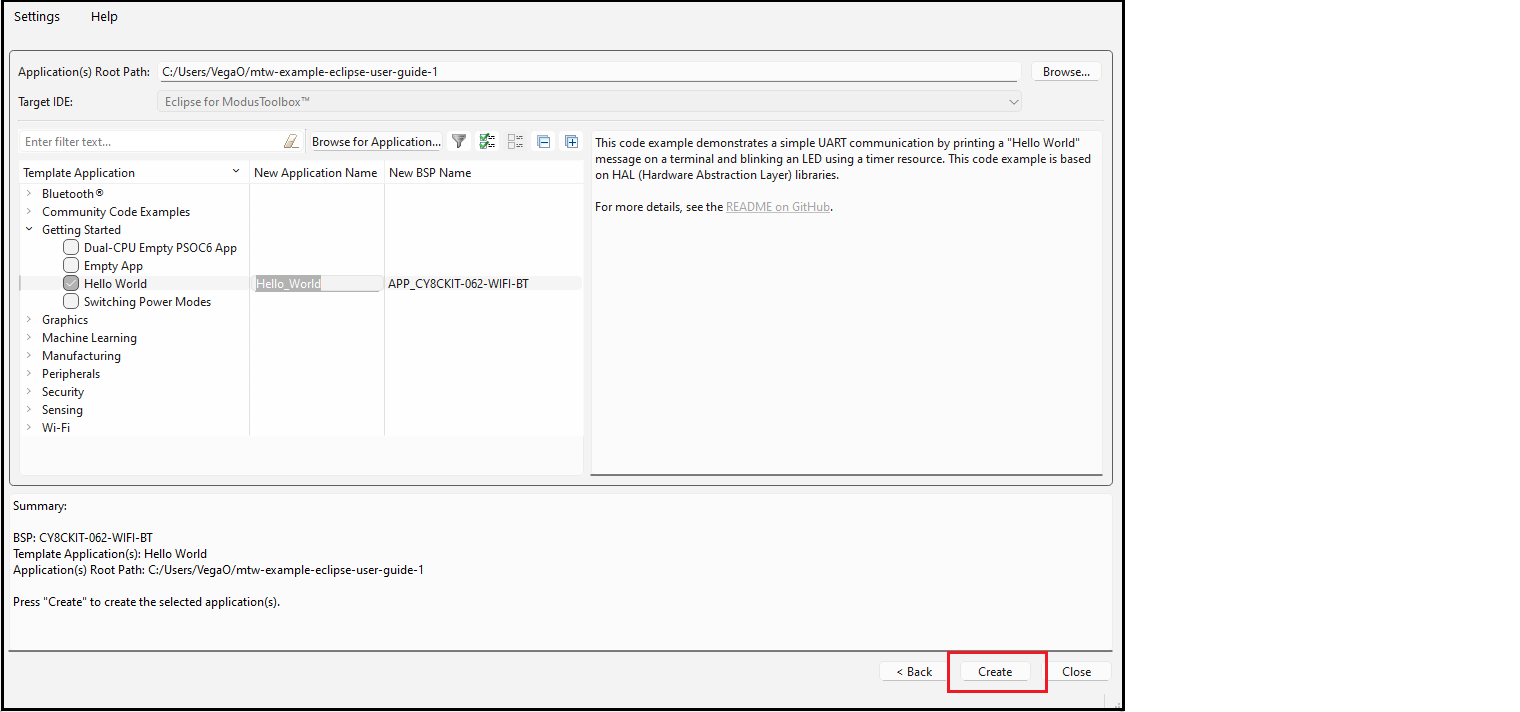
The application creation process performs a git clone operation, and downloads the selected application from the GitHub website. Depending on the selected application, this process can take several minutes.
When complete, the Project Creator tool closes automatically if there are no errors or warnings. If there are warnings only, click Close and the application will open in Eclipse. In Eclipse, a message will display about importing the project:
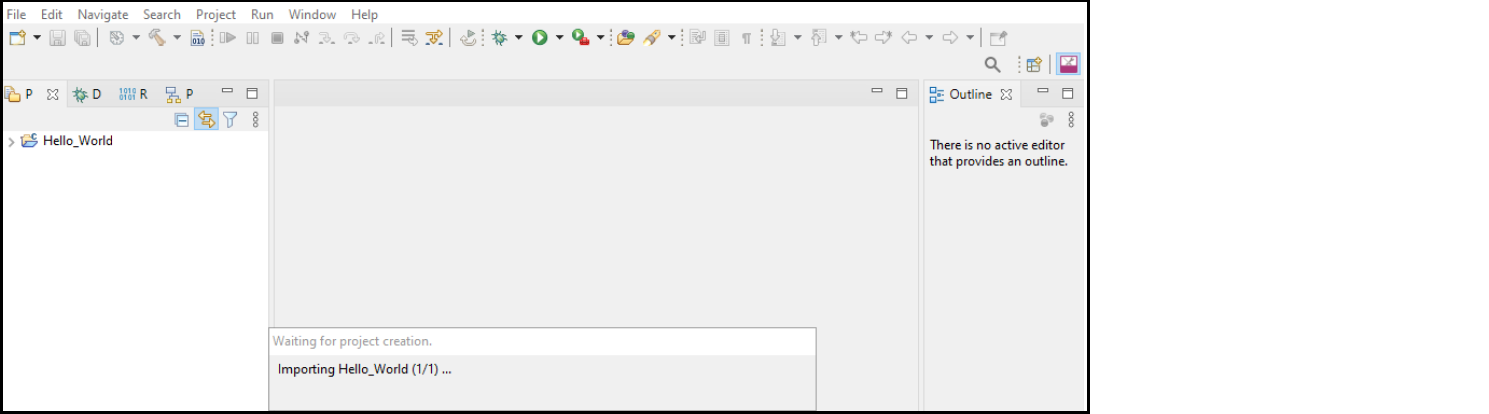
If there are errors, project creation will fail.
After several moments, the application opens with the Hello_World in the Project Explorer, and the README.md file opens in the file viewer.
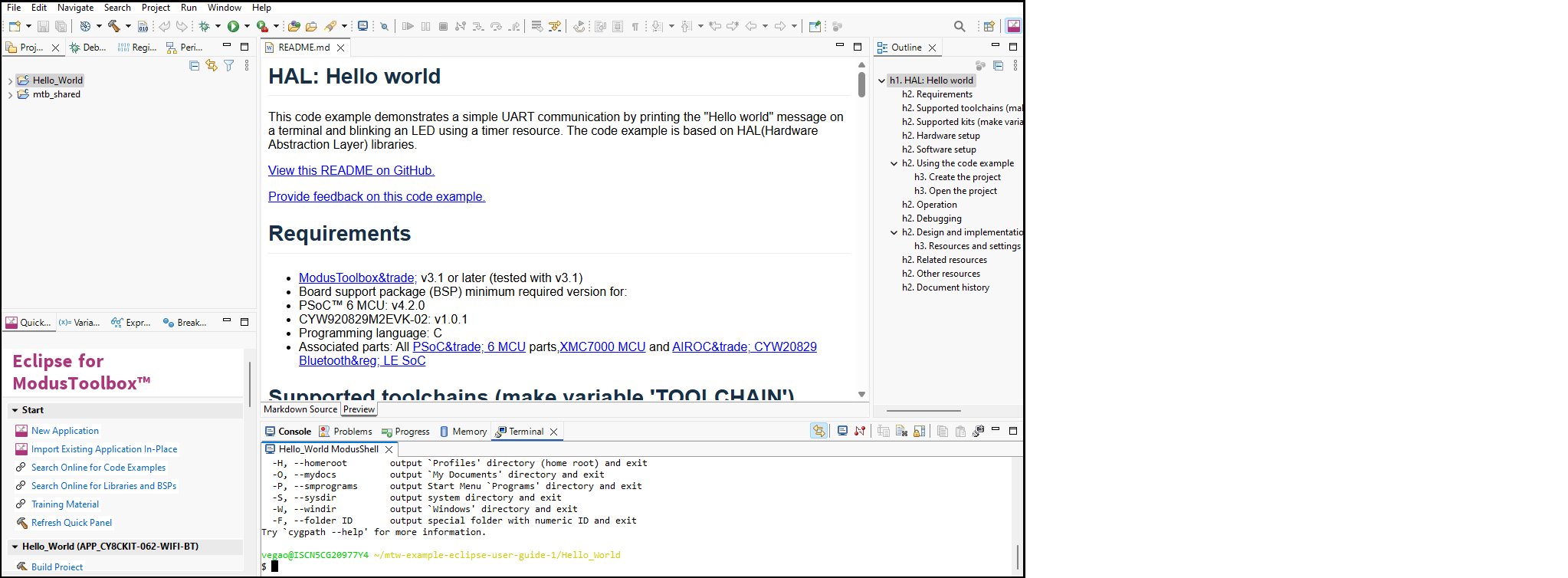
Many AIROC™ Bluetooth® applications contain multiple projects. For example, the BLE-20819EVB02 application contains projects for Bluetooth® Low Energy services such as anc, ans, bac, bas, beacon, etc.
Build application
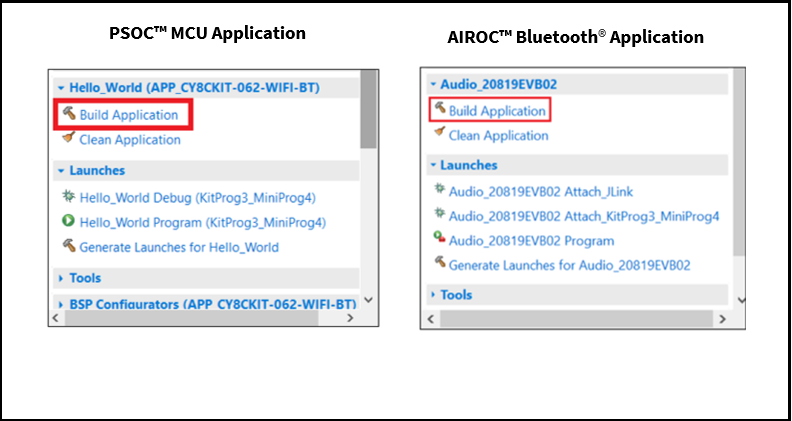
After loading an application, build it to generate the necessary files. Select a project. Then, in the Quick Panel, click the Build Application link. The following images show the Quick Panel for a typical PSOC™ MCU application and an AIROC™ Bluetooth® application.
Messages display in the Console, indicating whether the build was successful or not. For more details about building applications and the various Consoles available, see the Build applications chapter.
Program application
There are many more details about programming an application. This section only covers it briefly. For more detailed information, see the Program and debug chapter.
In the Project Explorer, select the desired project. Then, in the Quick Panel, click the [app-name] Program (KitProg3_MiniProg4) link for a PSOC™ MCU application, and [app-name] Program for an AIROC™ Bluetooth® application.
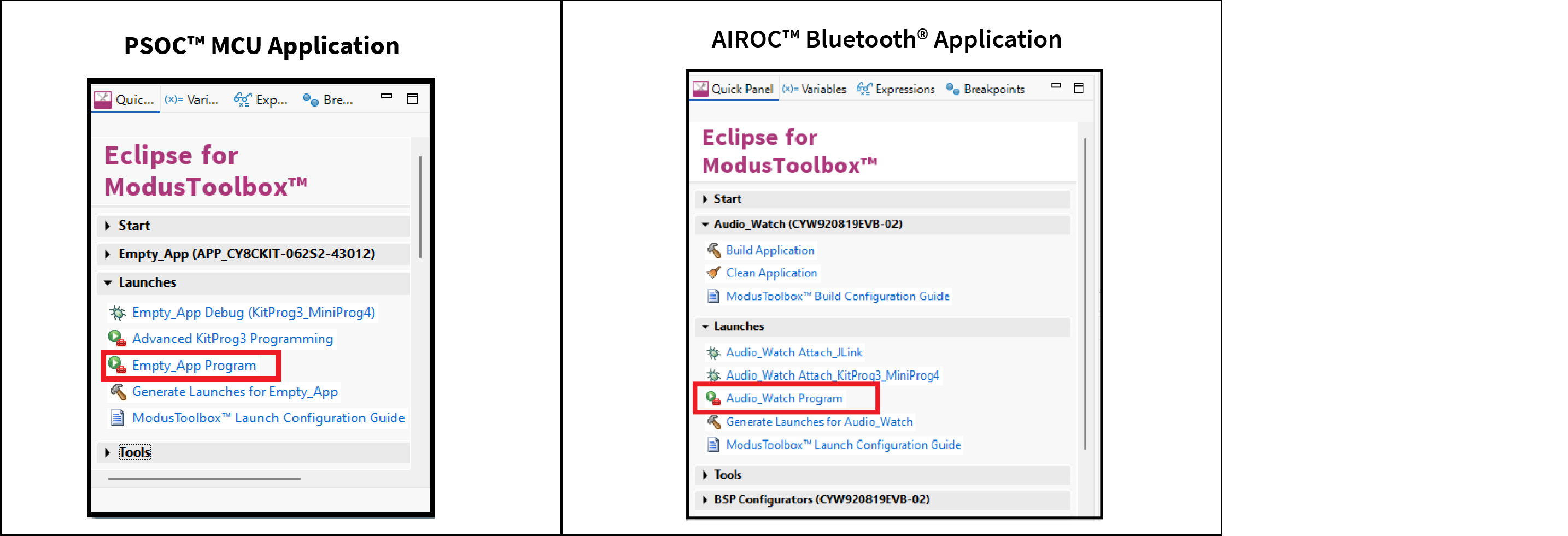
The Advanced KitProg3 Programming item in the Quick Panel is used to launch the ModusToolbox™ Programmer with the device and a HEX file already selected and configured for you. You must build your application before using this item. For more details on using the Programmer tool, see the ModusToolbox™ Programmer user guide.
Export/share application
There are several ways to share a ModusToolbox™ application. Refer to the ModusToolbox™ tools package user guide in the "Version Control and sharing applications" chapter for more general details.
Using Eclipse, you can use the export function to essentially make a copy of your application that you can share with a colleague. There are several ways to export using Eclipse. The option we recommend is to select the application and then use File > Export > General > Archive File, which creates a ZIP file.
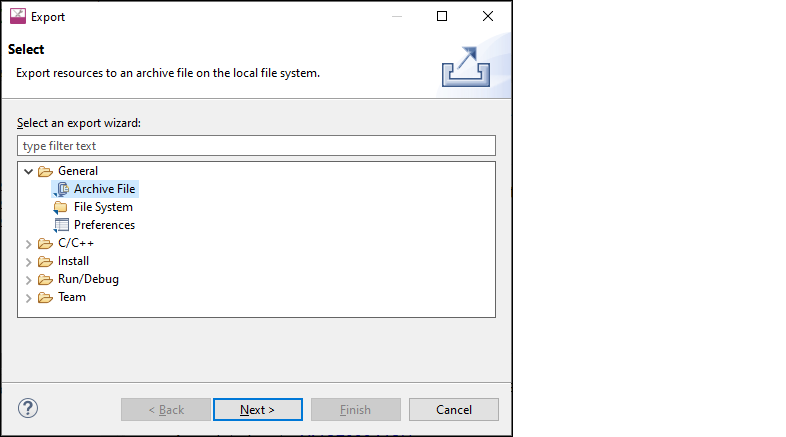
Keep in mind that a typical ModusToolbox™ application includes many libraries that are available on GitHub. These get regenerated during the make getlibs command. Therefore, you can substantially reduce the size of your exported application by excluding the libraries. Plus, the exported mtb_shared folder might retain hard-coded paths that would cause issues after importing the application.
For multi-core applications, Eclipse export function shows the core project folders along side the main application folder. These project folders are included in that main application folder, so you should exclude them from the export process as well.
On the Export dialog, select only the main application folder(s) to export. You may need to review your application in Eclipse to determine which folders you should exclude. By default, subproject folders include an extension after the application name.
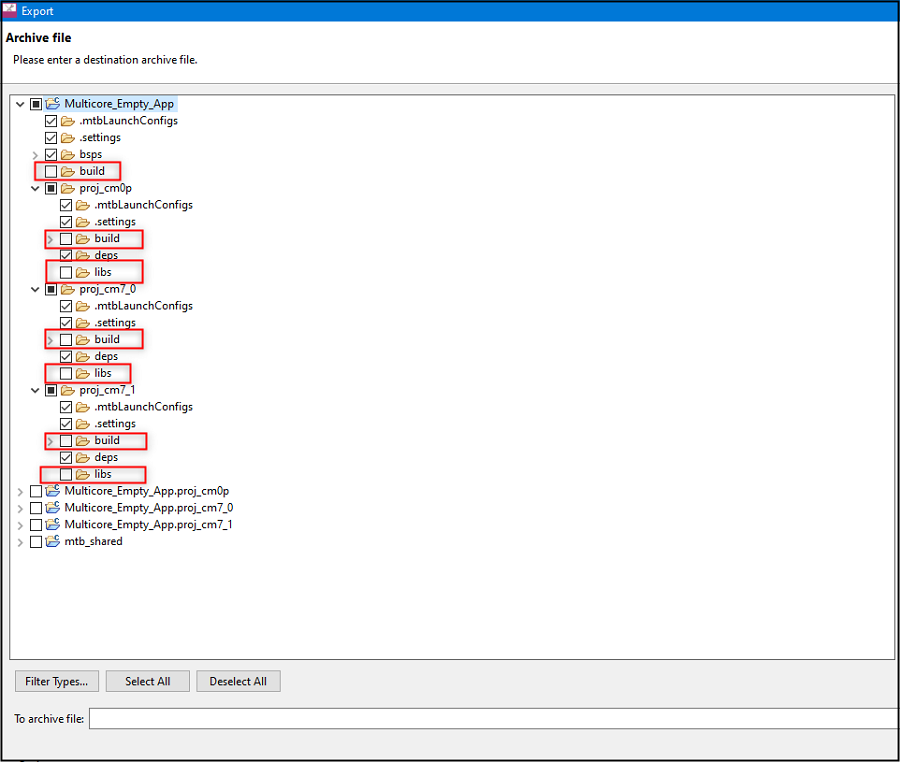
Ignore the extra project folders shown at the bottom of the window under the destination archive files. They are a byproduct of Eclipse and unnecessary to the export process.
Click Browse… to navigate to the location to save the archive and provide a file name.
Click Finish to generate the archive file.
Make sure build, libs, and mtb_shared are not selected to exclude them from the archive.
Import application
If you have a ModusToolbox™ application that you want to import into Eclipse, run the make getlibs command before importing it into Eclipse.
If the application is included in a ZIP file, you will need to extract it before running various commands.
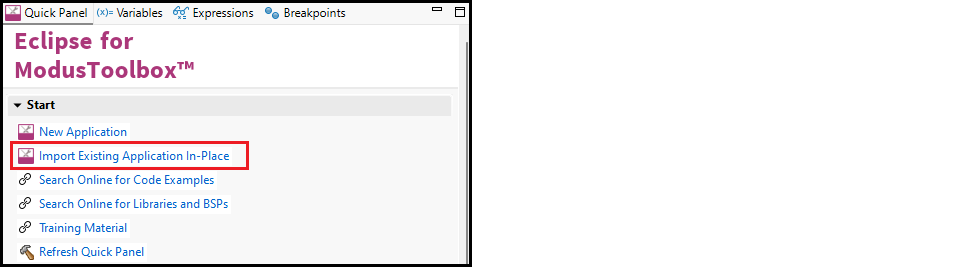
Then, either use the Import Existing Application In-Place link on the Quick panel or open through the File > Import ModusToolbox™> Import Existing Application In-Place option.
This option does not copy or move the application location on disk; it only makes a reference for Eclipse to the current application location.
On the next page, click the Browse… button, navigate to the application directory, and click Select Folder.
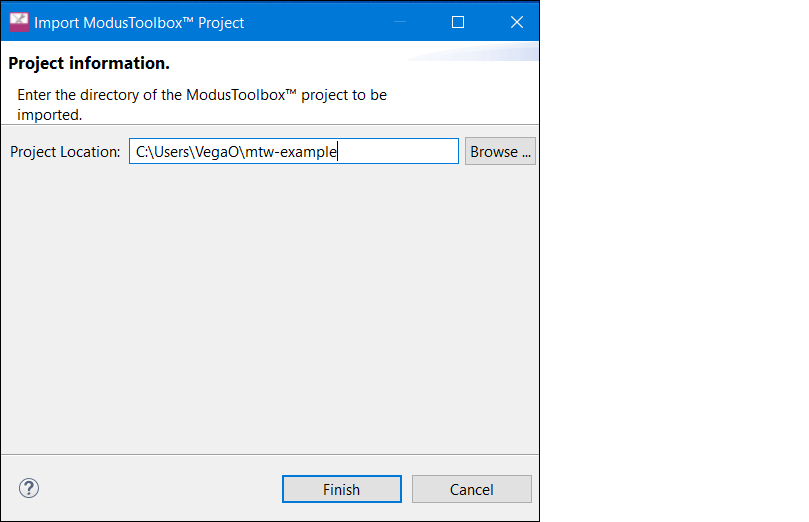
Click Finish to begin the import process. This will take a few moments, and then the application will display in Eclipse Project Explorer.
If the Console displays a message, such as "Error creating Eclipse configurations," open the Library Manager and click Update. This runs the make getlibs operation to generate the necessary files and libraries.
There are various ways to import examples into Eclipse. If you prefer a different method, make sure that all of the project files are copied into the workspace directory.
Search online for code examples
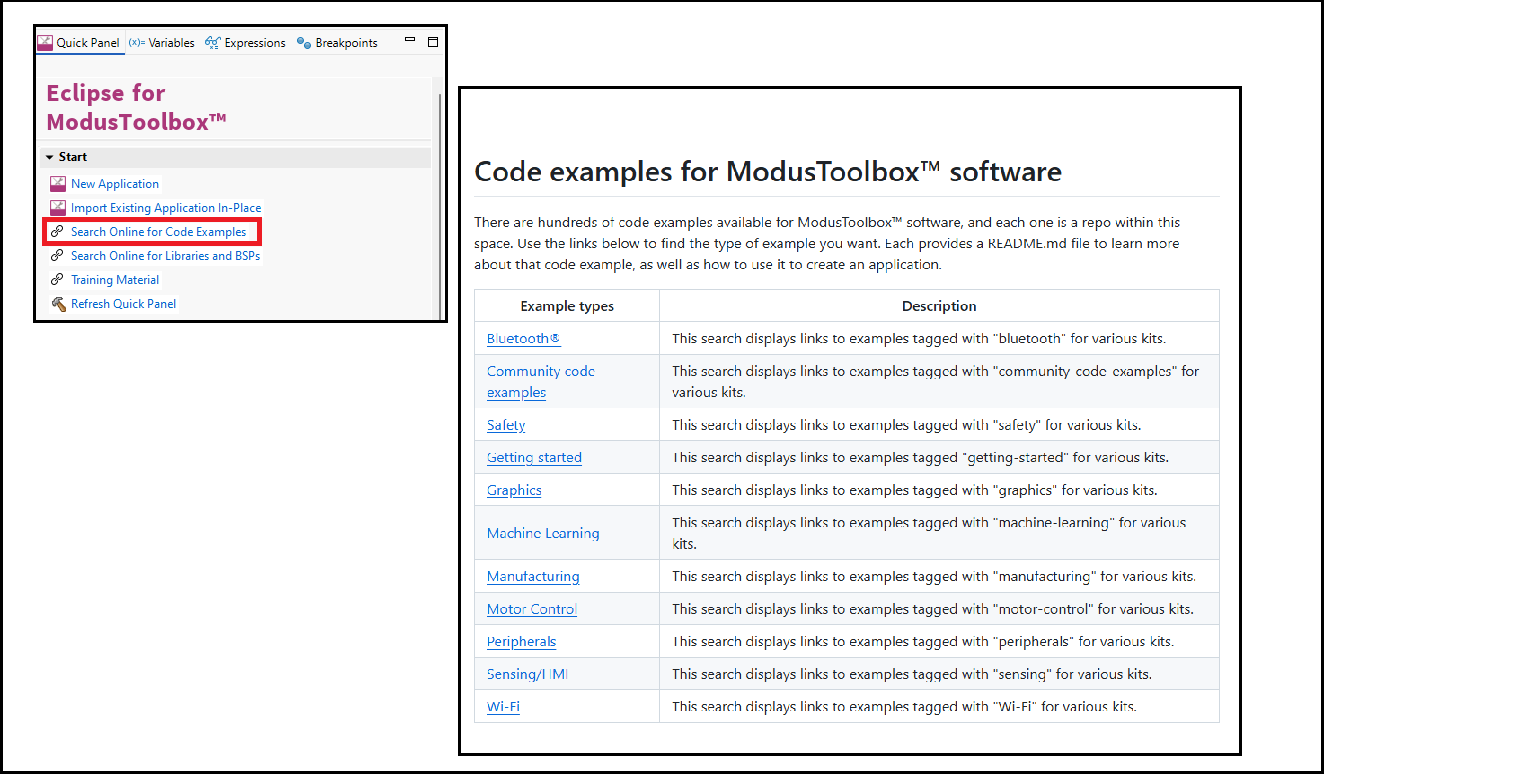
Infineon provides many code examples. These examples allow you to explore the capabilities provided by the SDK, create applications based on them, examine the source code demonstrated in them, and read their associated documentation. The Quick Panel provides a link to access online code examples. Click the Search Online for Code Examples link. This opens a web browser to the GitHub repository to select and download the appropriate examples.
Search online for libraries/BSPs
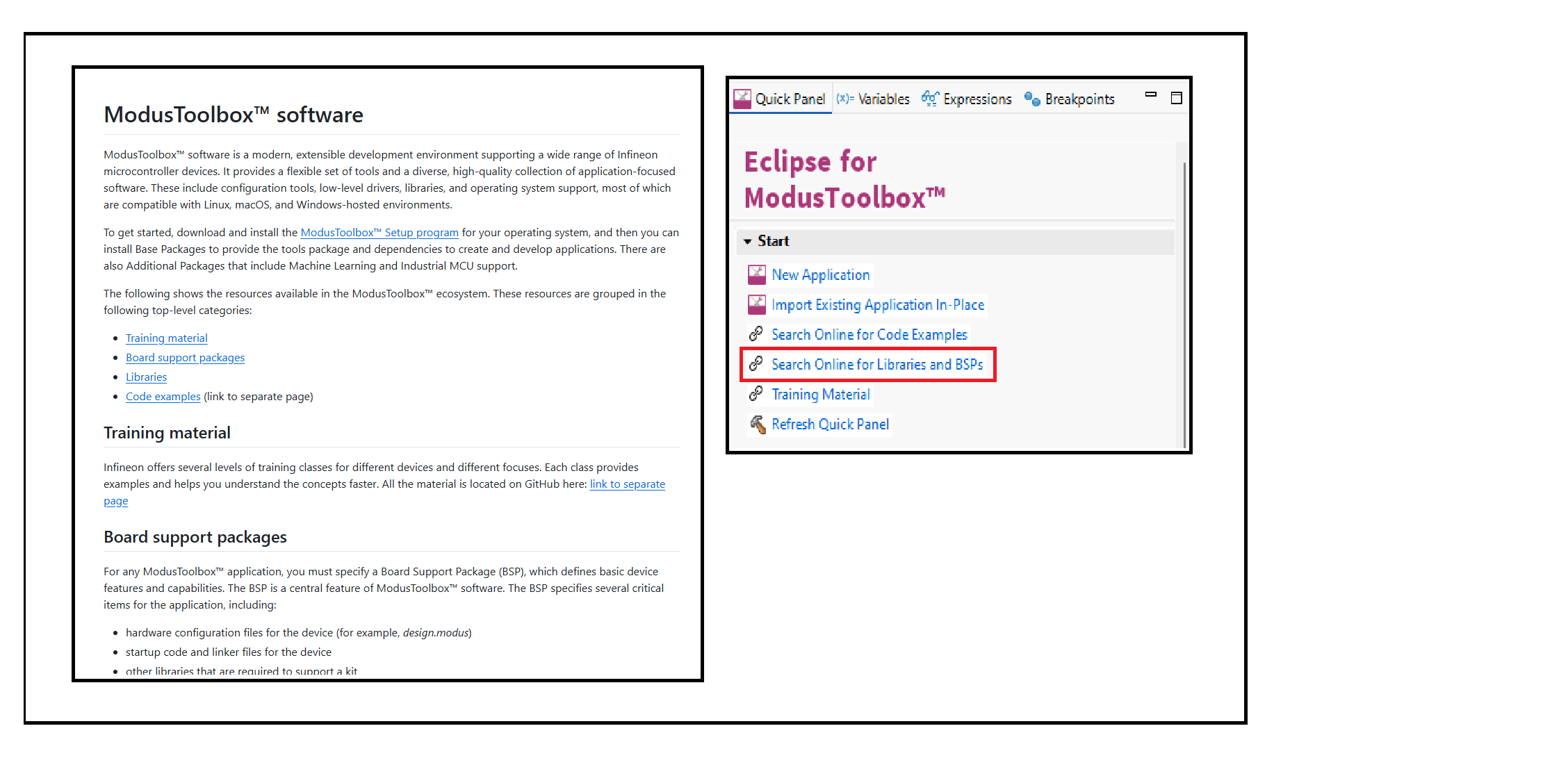
Infineon also provides all the libraries and BSPs online at GitHub. The Quick Panel provides a link to access these. Click the Search Online for Libraries and BSPs link. This opens a web browser to the GitHub repository that shows the ModusToolbox™ software page.
Access training material
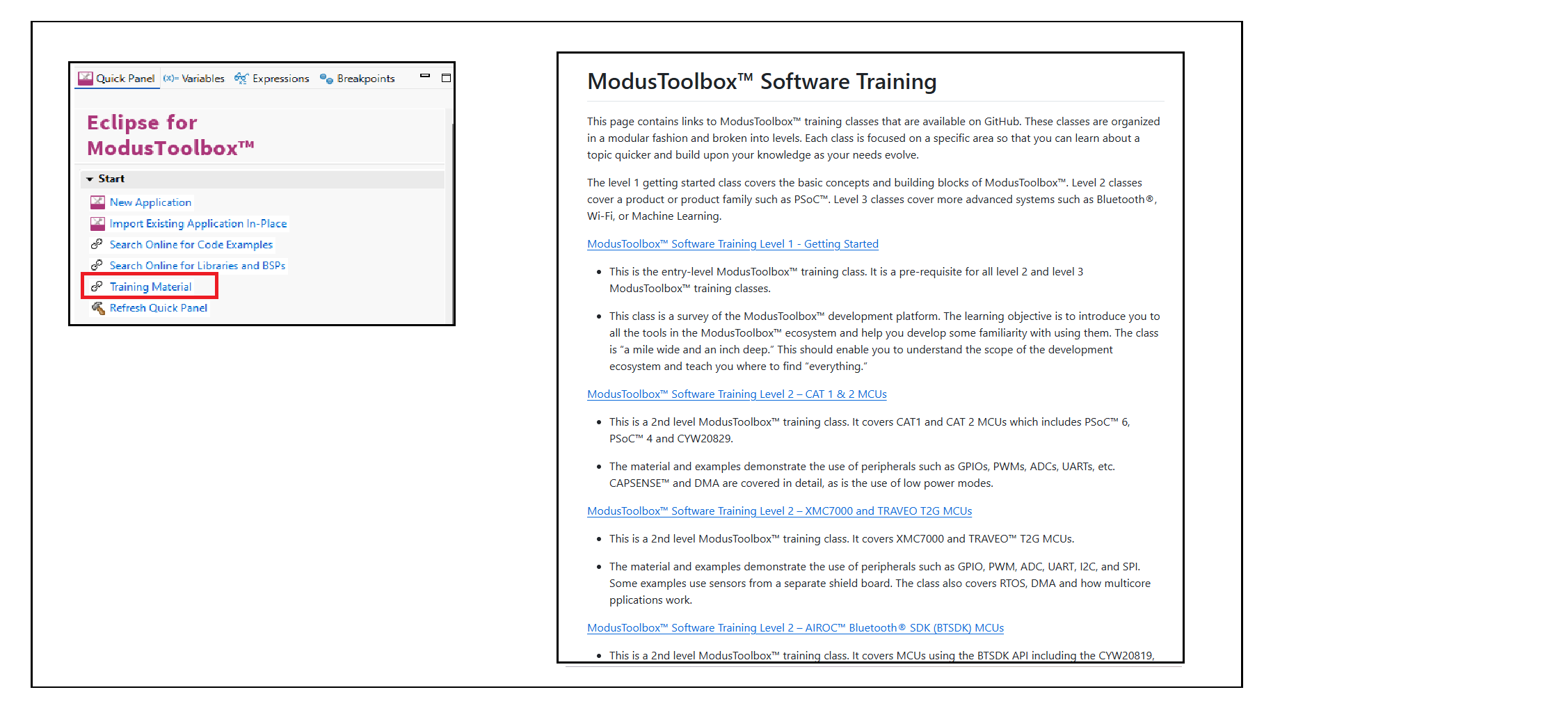
Infineon also provides training material at GitHub. The Quick Panel provides a link to access these. Click the Training Material link. This opens a web browser to the GitHub repository that shows the ModusToolbox™ training page.