Configuring settings
The Settings tool includes the following options for configuration:
Operating Mode
This setting provdes access to the Local Content Storage (LCS) feature, which provides a command-line tool called lcs-manager-cli to create your own local content on demand. You can decide whether to save the entire database (approximately 5 GB of data) or a subset of data for the BSPs that you specify. Refer to the ModusToolbox™ Local Content Storage CLI user guide for more details.
Use this setting to switch between online mode and local content mode.

If you change settings, this may affect any instances of tools that are currently running. Additionally, if you make unsaved changes before adjusting the settings, it could lead to issues. It is recommended to avoid running other tools while modifying the settings.
Proxy Server
The Proxy Server setting sets up the proxy-helper tool. Select either direct or manual proxy settings.

Save any changes before attempting to update proxy settings. A dialog will warn you that changes could be lost.
Manifest DB
The manifest database determines the available BSPs and libraries used for your applications. In some cases, you may not be able to access the default location of the database. This is often an issue for users in corporate environments that block access to some sites.
If you have this issue, use this option to specify an alternate location of the manifest database.

Select the desired option with the value editor:
-
Default Manifest DB - Standard Infineon URL on GitHub
-
Default China Manifest DB - Standard URL for China users
-
Advanced Settings : - Custom URL with the following options:
-
User defined manifest DB URL : Specifies a specific location of the manifest database for ModusToolbox™ tools, for example https://mycompany/mtb-super-manifest/v2.X/mtb-supermanifest-fv2.xml.
-
Git insteadOf - old value : This provides a value, for example GitHub.com/Infineon, that Git will use to switch to a new value.
-
Git insteadOf - new value : This provides a new value, for example mycompany.com/mtbmanifest, that Git will substitute for the old value.
-
Refer to the ModusToolbox™ tools package user guide for more details about manifests.
Information Level
The Information Level setting allows you select the level of messages for Git commands. Select one of the following levels of output for Git operations:

-
Low : Displays spinner when downloading Git repos.
-
Medium : Displays numerical representation of progress, as well as any running sub-commands.
-
High : Includes spinner, running sub-commands, and visual representation of progress.
Enabled EAP
If you have an early access pack (EAP) installed, this setting allows you to choose the enabled EAP from the list or disable the EAP. When you select an EAP from the list, it will automatically get enabled when you click Save.
Refer to the ModusToolbox™ software installation guide for more details on installing early access packs.

Global content path
This setting allows you to specify an alternative path to the global repository folder. Click the Browse button to navigate to the location of the global repository folder.

Local Content Storage Location
If you installed LCS in a non-default location, use this setting to specify that location. Click the Browse button to navigate to the location of the LCS folder.

Forbidden characters, including spaces, cannot be used in the path value.
manifest.loc file path
If you installed the ModusToolbox™ tools package in a non-default location, use this setting to specify an alternative path to the manifest.loc file. Click the Browse button to navigate to the location of the manifest.loc repository folder.

Default SDK
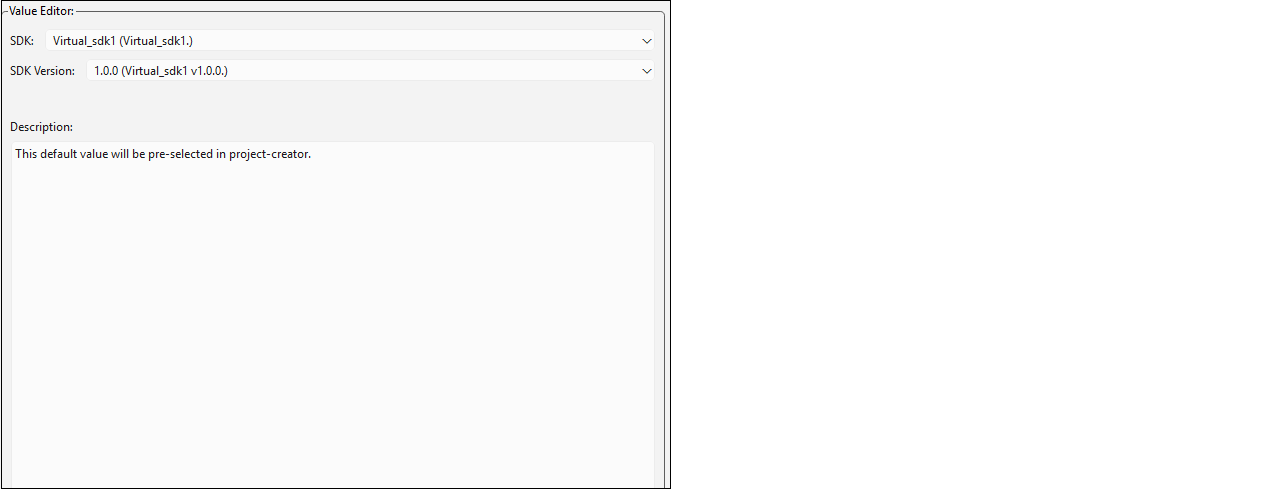
The default SDK setting allows you to select a virtual SDK in various tools like Project Creator and Library Manager. A virtual SDK is a list of assets (kits, applications, libraries, etc.) and specific versions of those assets. For more information on using virtual SDKs, refer to the Project Creator user guide.
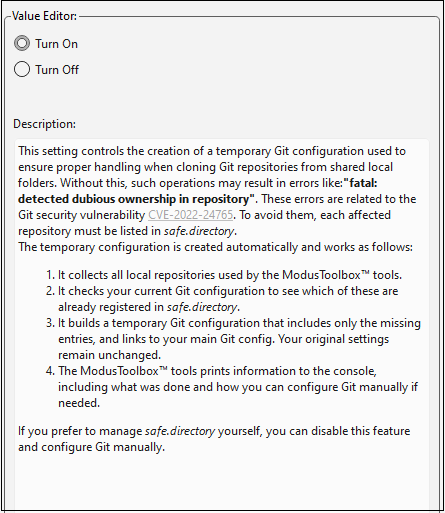
Git safe.directory configuration
This setting creates a temporary Git configuration used to avoid errors caused when cloning Git repositories from shared local folders. Use the value editor to turn the feature on and automatically create a temporary configuration. Alternatively, you can use the value editor to turn the feature off and configure Git manually.
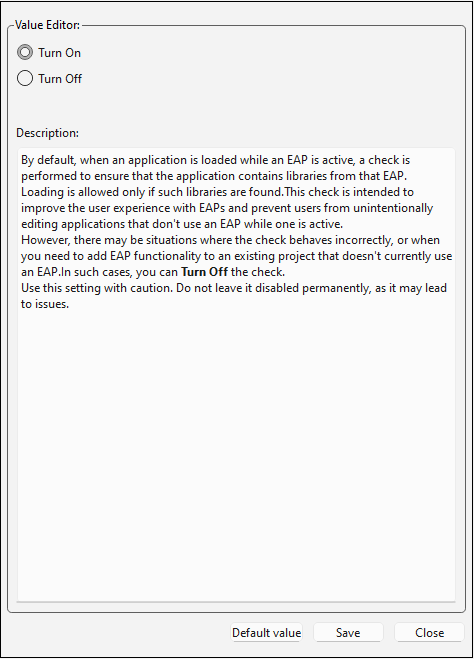
Check EAP on app load
This setting enables a check when an early access pack (EAP) is active to ensure that the application contains libraries from that EAP. While this setting is meant to improve the overall user experience with EAPs, you can choose to disable the check feature for your project, if needed.
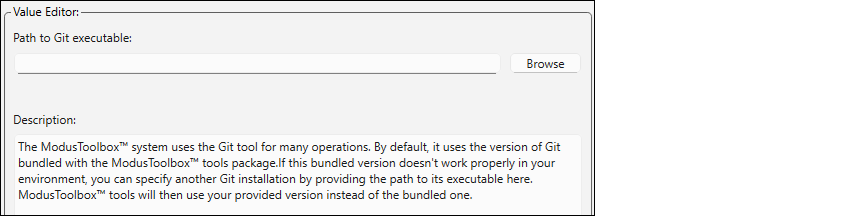
Custom Git executable
If the default version of Git bundled with the tools package does not work properly, this setting allows you to specify a different Git installation by entering the path to its executable.
Tools Paths
This setting is controlled by the environment variable 'CY_TOOLS_PATHS' and cannot be changed using the Settings tool. To change this setting, you must change the environment variable.
